Beginner
How To Add a Framer Profile Page for Members
Give members a profile page on your Framer site where they can view and edit their own details and change their password. No code, step by step.

User account page
VIDEO
Setting up a seamless member profile page is essential for any membership-driven site.
This guide will walk you through building a profile page that keeps your members in control. Let’s dive in and create an experience that enhances engagement and streamlines account management.
1
Create an account page on your website: /account
Use our free remix as a baseline to help add the member profile elements.
2
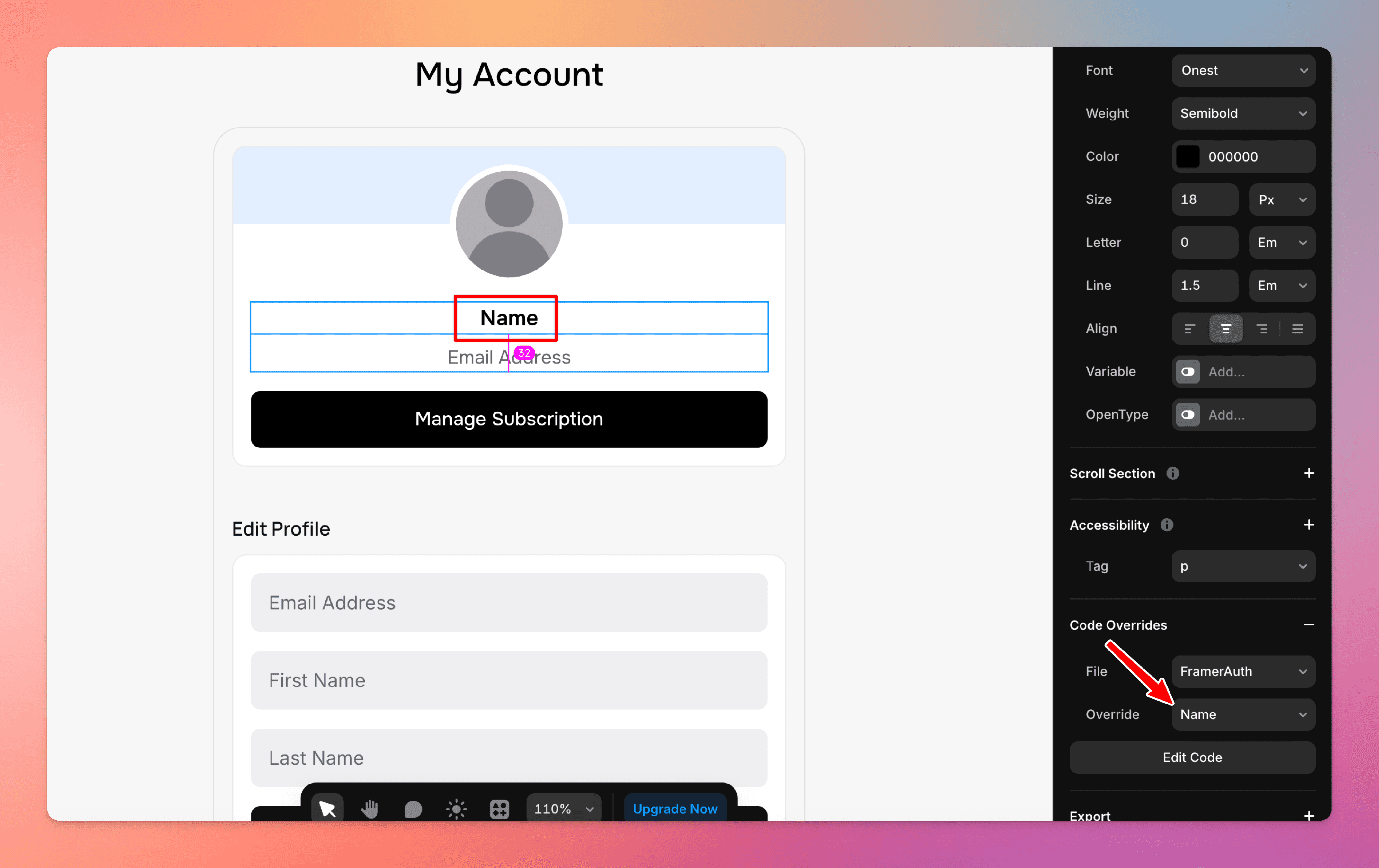
Display user's name
FirstName- this override displays the member's first name.
3
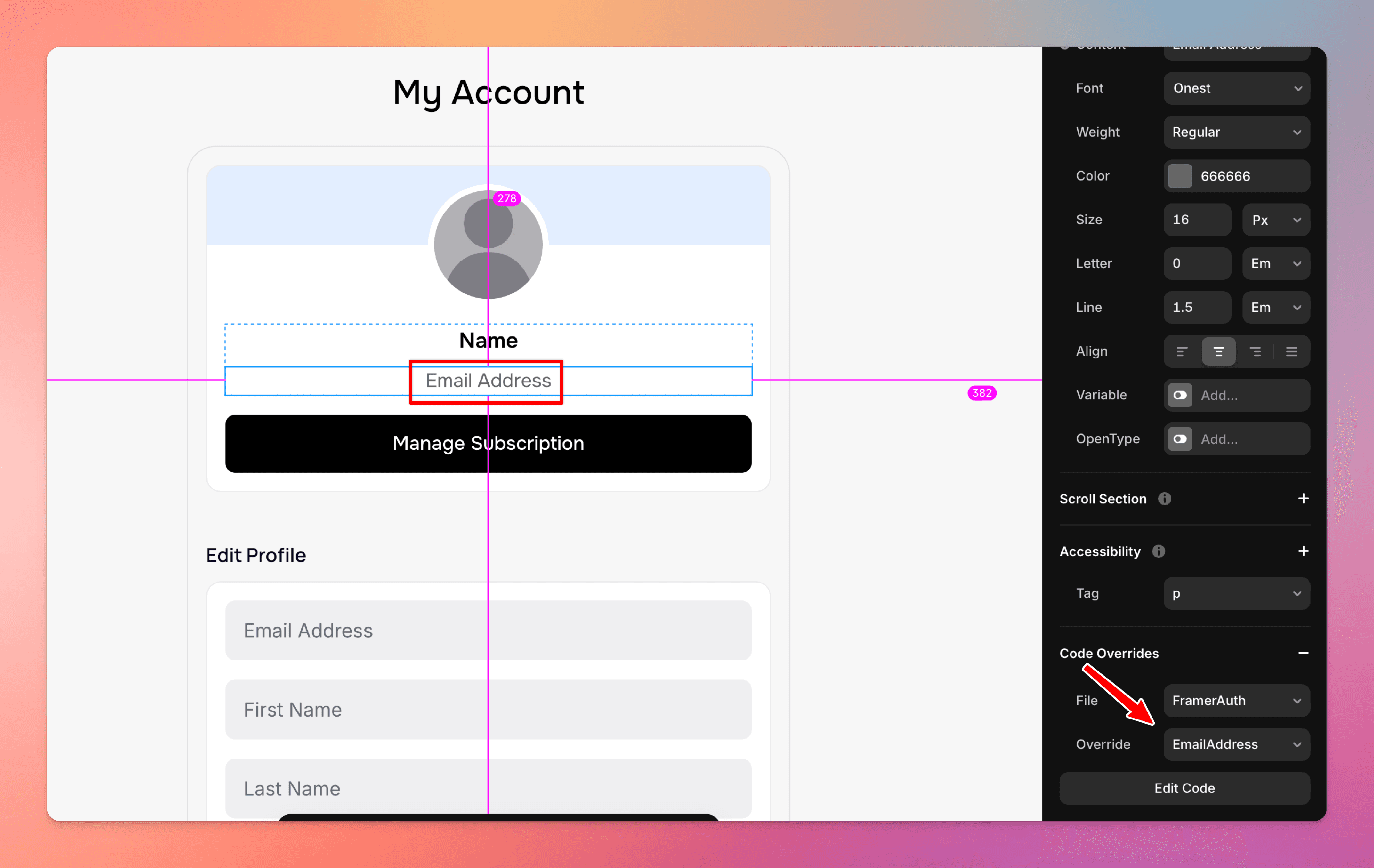
Display user's email address
EmailAddress- this override displays the member's email address.
4
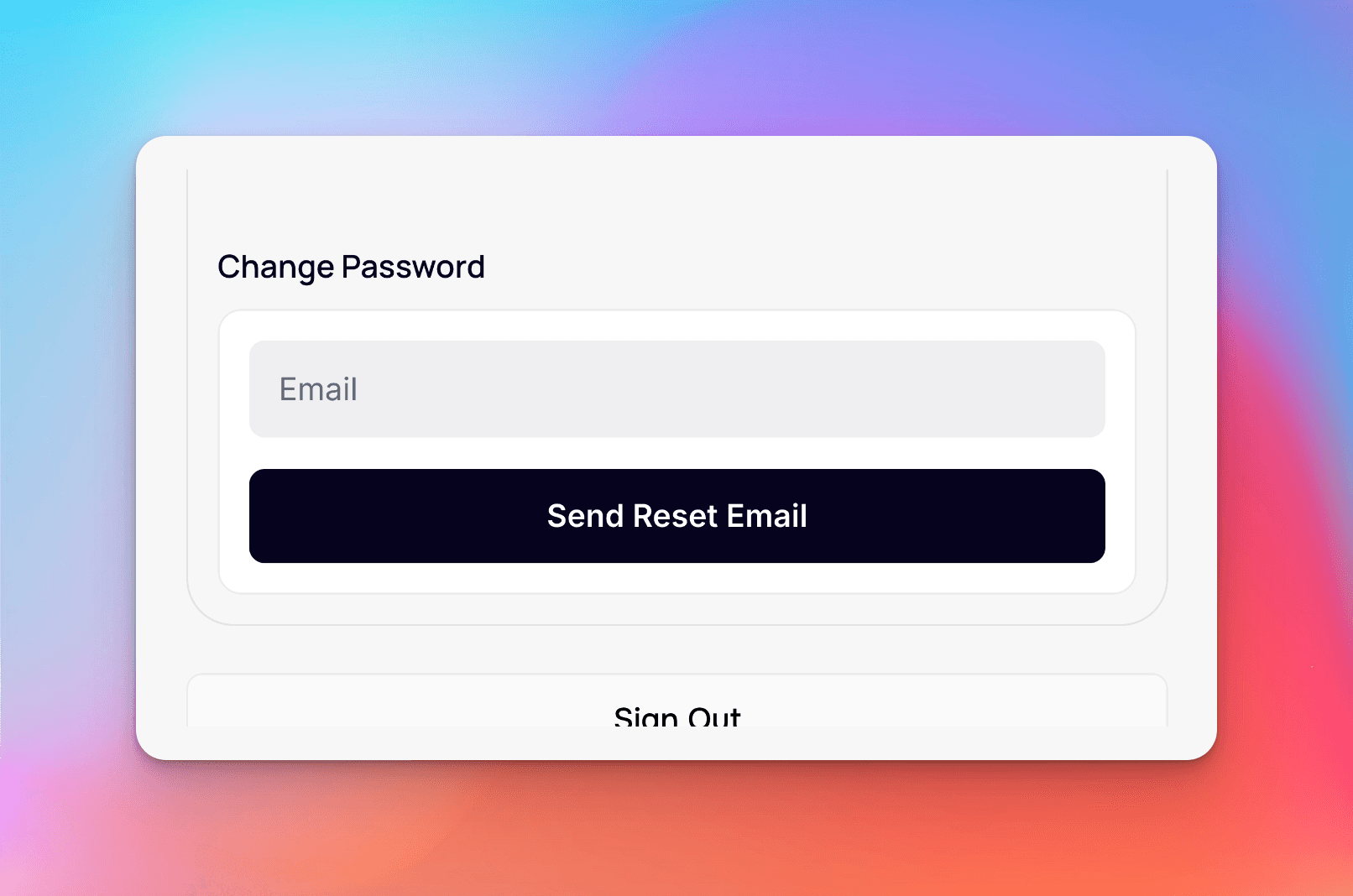
Change password
Give your member's the ability to change their password by sending them to your /forgot-password page which has the Forgot Password component. Alternatively, you could place the Forgot Password component on the account page without issues.
5
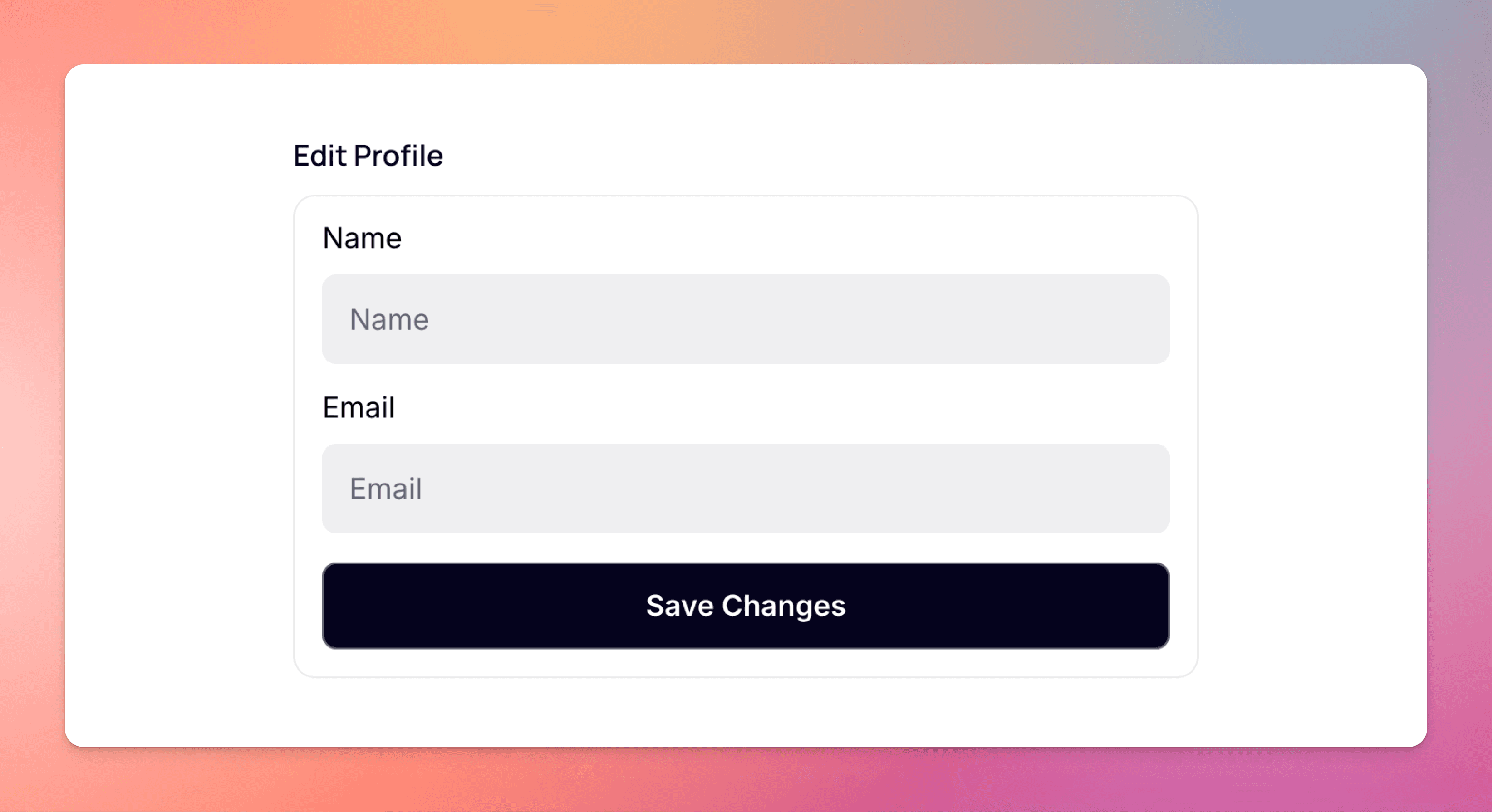
The user profile form
Add the profile form provided during setup which will allow members to make changes to their email address, name, and custom fields.
6
Add 'sign out' button
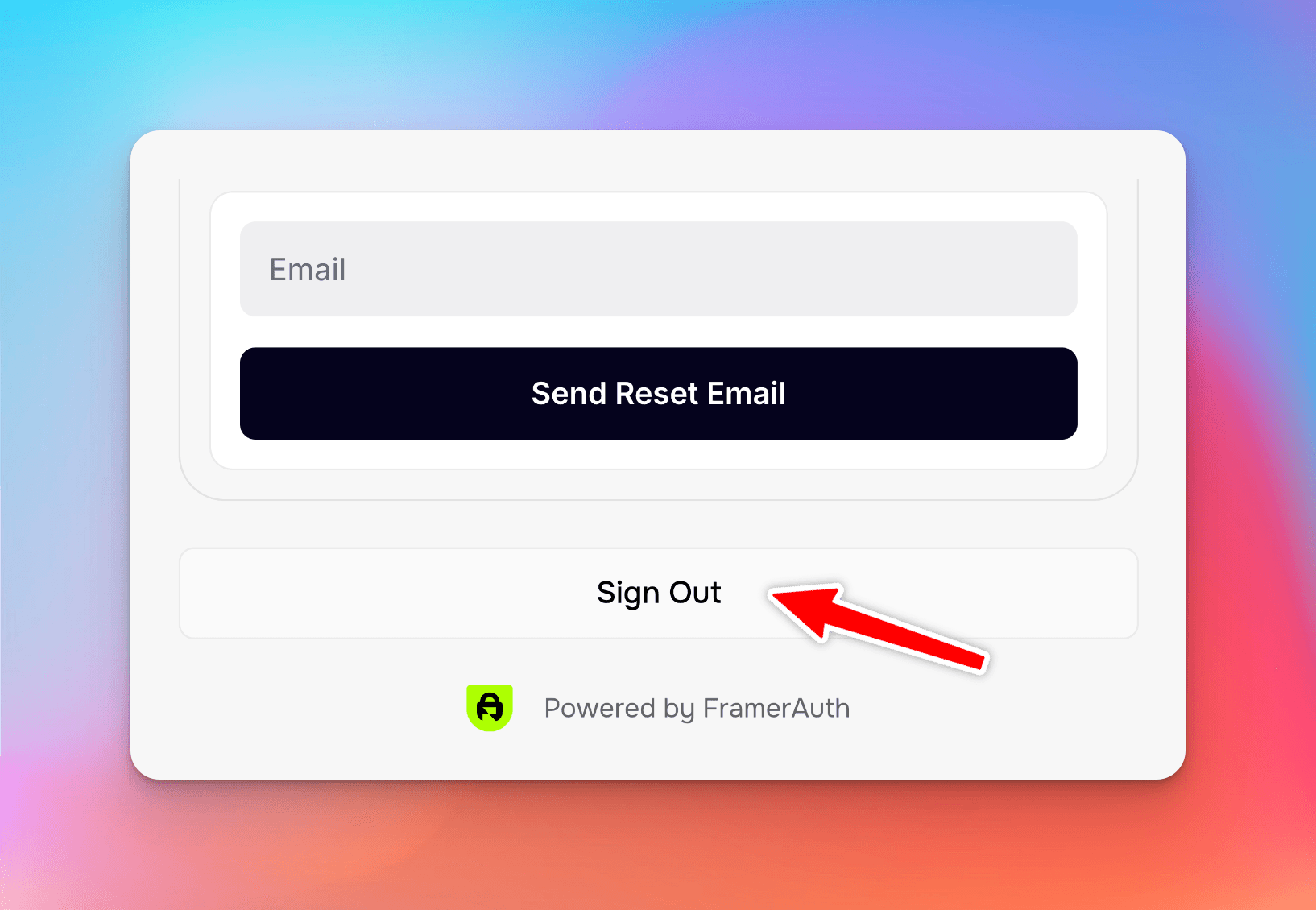
Add a frame or a button component from your project and apply the override SignOut. Make sure this button or frame does not have a redirect link.
7
Optional: conditionally hide the account page from logged out visitors
Since the account page is only useful to logged in members, there are a few things you can do to ensure only they can access the page.
Apply to the 'my account' button in your navigation
ShowIfSignedInto ensure only logged in members see the button to take them to their account page.Set the
/accountpage to be locked in the dashboardAlternatively, rather than locking the page, you can keep the account page visible to all visitors and use overrides to display different content based on the user’s login status. Apply
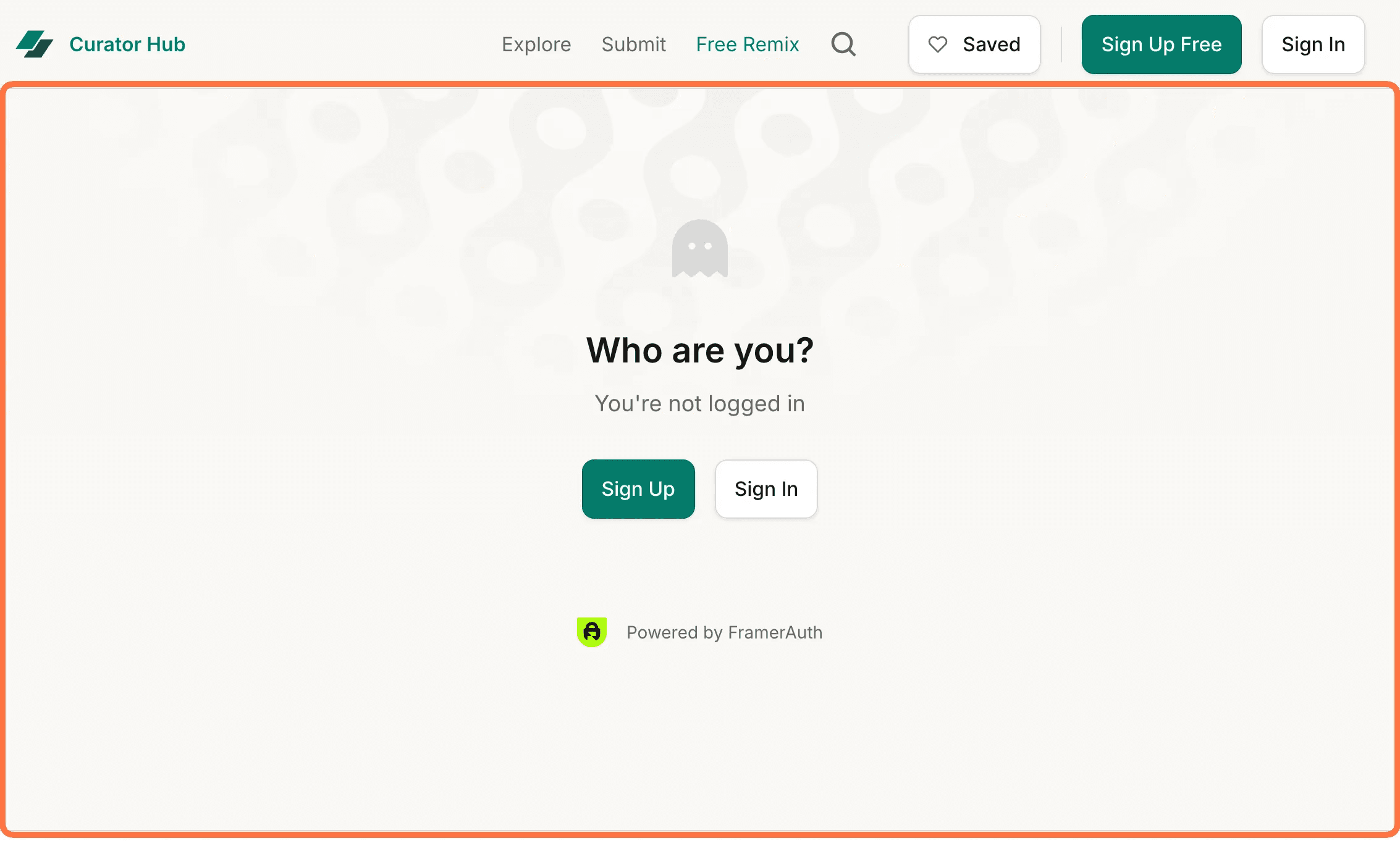
ShowIfSignedInto the account section so that logged-in members can view their account details. For logged-out users, create a section like the example below and applyShowIfSignedOutto the entire section.
8
Optional: display which active plans the member has
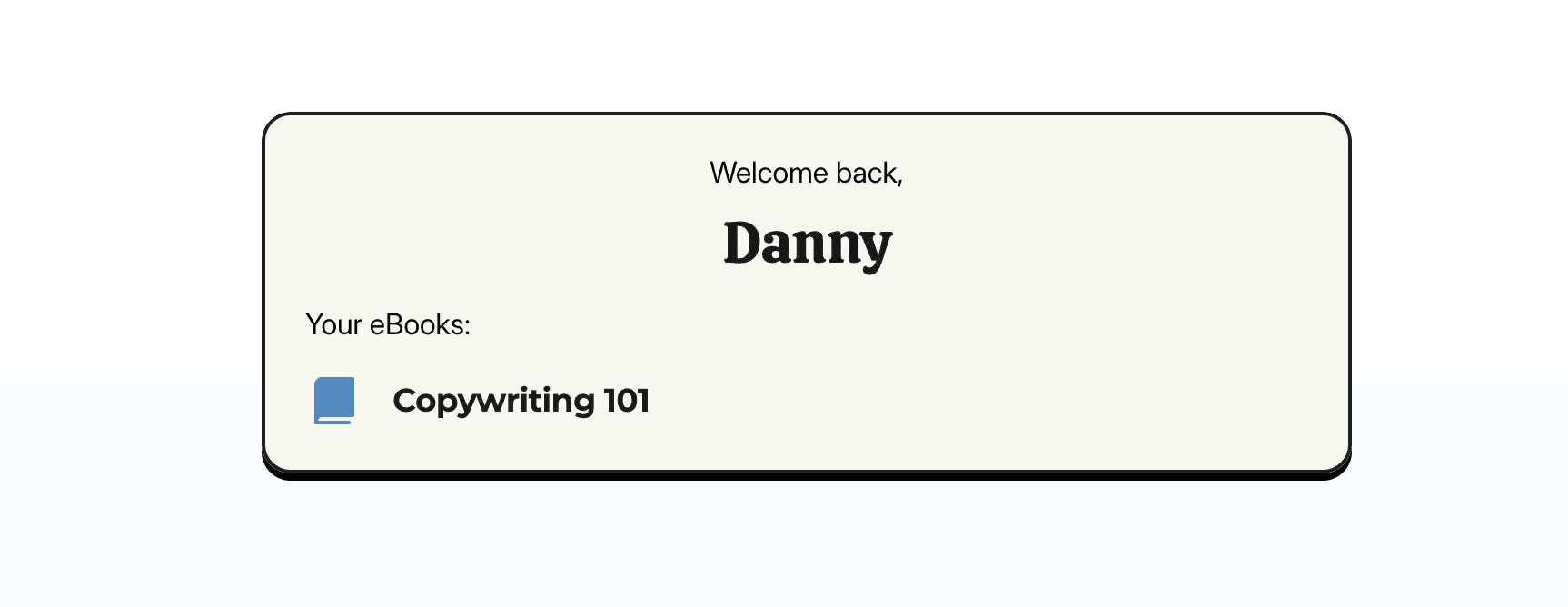
By utilizing the ShowIfWithTag override with the tag interface component, you can display to the member which products they've already purchased. For example "You're on the lifetime plan!"
Or you could have a frame that says "You are on the free plan, upgrade now!" and wrap it in the ShowIfWithoutTag to be displayed when the user has no tags.
Follow this guide to implement: Conditionally show content to specific tags.
You can also display custom fields on the account page by utilizing fetch. Follow the custom fields guide for more information
9
Add an option to 'manage billing'
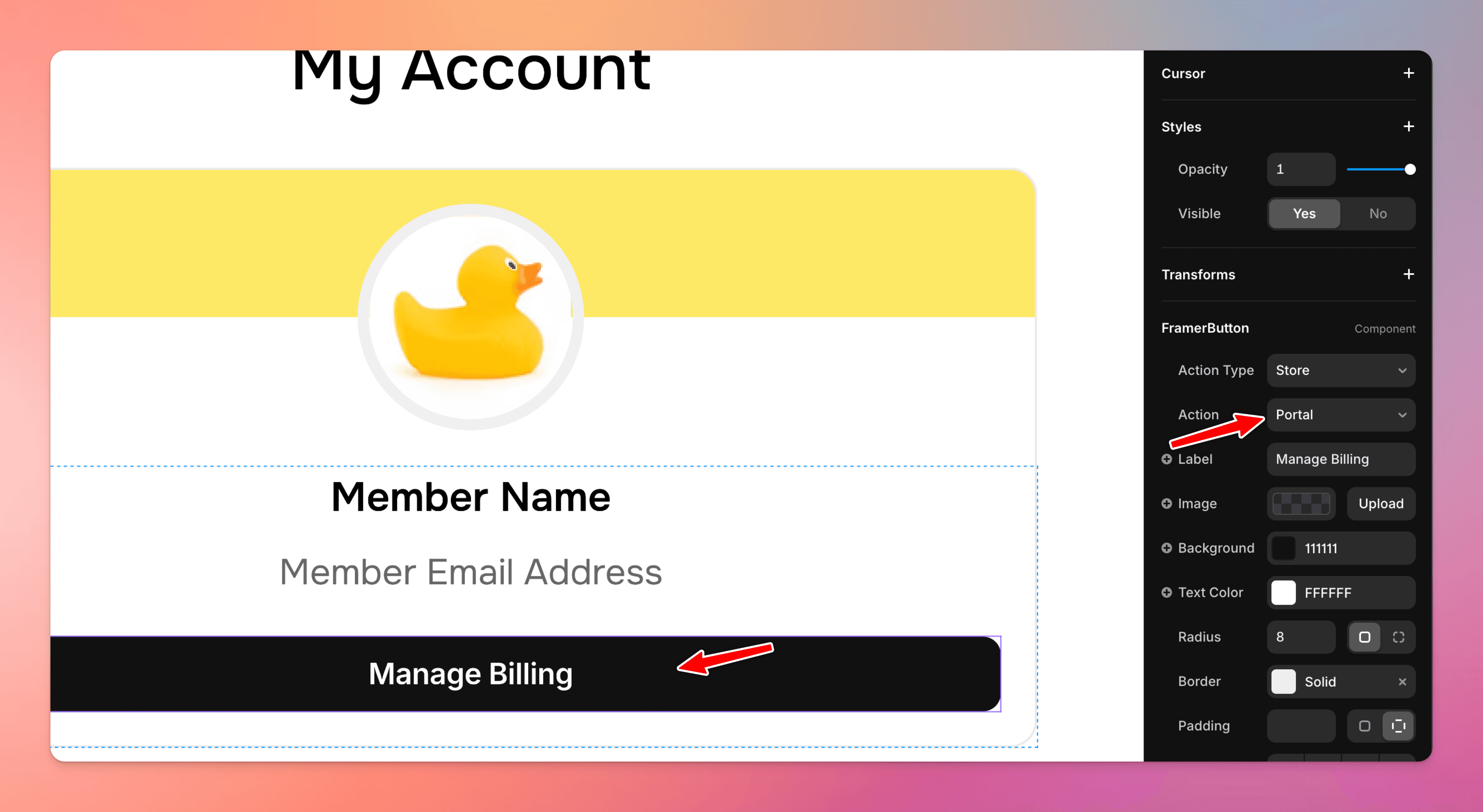
If you're utilizing Stripe then you'll want to link your users to a place where they can manage their subscription. To do this, utilize the Action Button component and set the action type to Store and action to Portal.
FAQ
Can one account page serve signed-in and signed-out visitors?
Yes. Show account details to signed-in users and a sign-up prompt to signed-out visitors on the same page.
How can the account page show an upgrade prompt only to free members?
Show the paid-state message to users with the relevant tag and the upgrade prompt to users without it. Do this with overrides like ShowIfWithTag or ShowIfWithoutTag.
Updated:
Need help? Talk with a human.