Beginner
Set Up Authentication in Framer: Full Guide
Set up authentication, payments, and gated content on your Framer site with FrameAuth. The complete guide from first install to going live.

Full set up
VIDEO
Agent setup
Setup manually
1
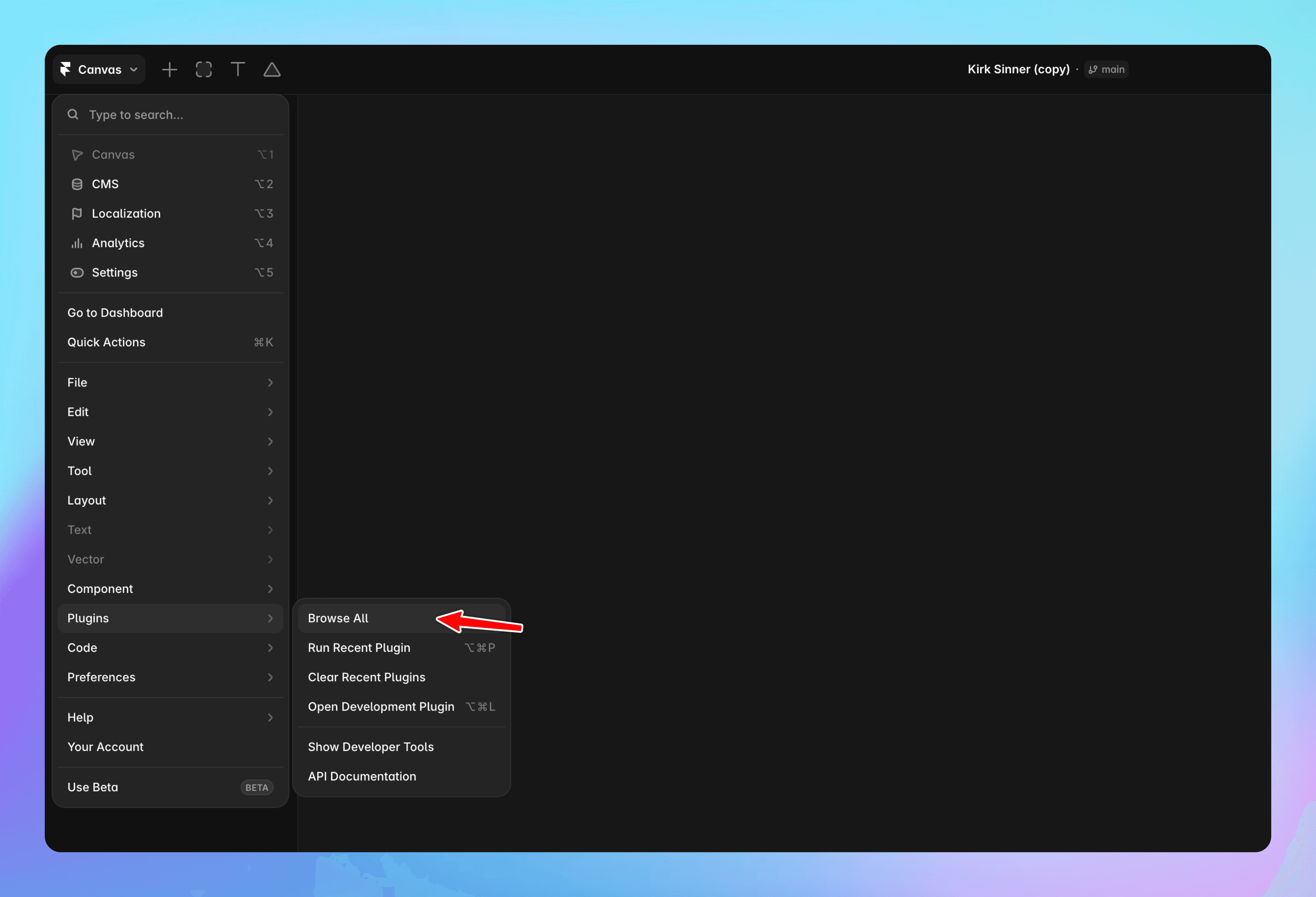
Open the FrameAuth plugin in Framer and sign in
Launch our free Framer authentication plugin and sign up or sign in to gain access to FrameAuth features.
2
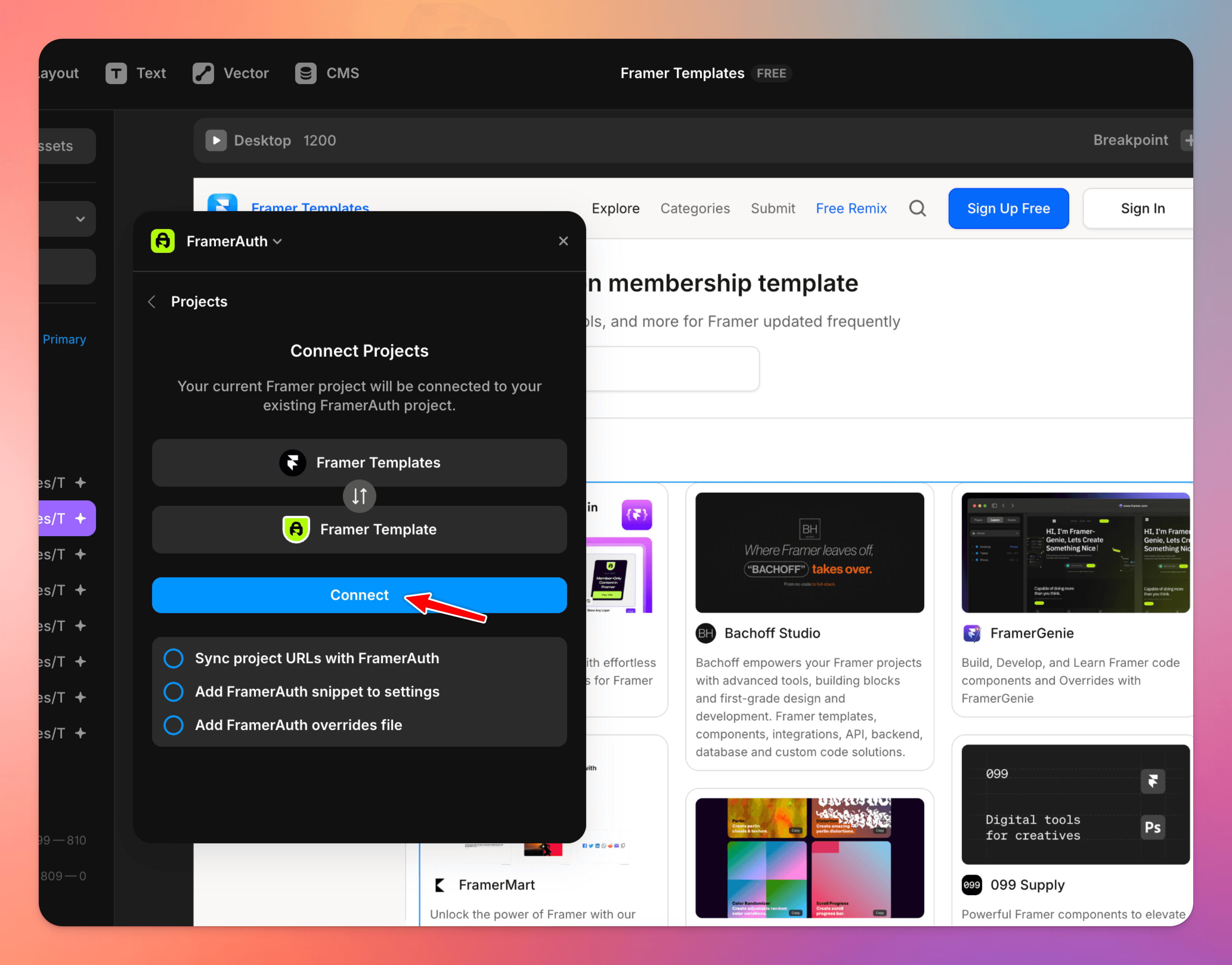
Connect your project
Once you've signed in, select your project then click 'connect.'
3
Use the prompt
This Framer agent will build a complete sign-up/sign-in/forgot-password/reset-password flow plus an account page for your Framer site using FrameAuth, matching your existing design system exactly then wires up your navigation to show the right links based on whether someone's logged in.
If you'd prefer an OTP sign up/in flow instead, use the OTP prompt.
Title
Copy
prompt:
# CONTEXT
This site uses FrameAuth, a no-code authentication plugin for Framer. Authentication
UI is delivered as remote code components embedded by URL, and behavior is wired up
with overrides from an existing overrides file in the project named `FramerAuthV2.tsx`.
My task for you is to build the full membership experience: sign-up, sign-in, forgot
password, reset password, an account page, and navigation that reflects logged-in state.

# ROLE
You are a senior Framer web designer building on an existing site. You work within
the site's established design system and never introduce new visual conventions.

# GLOBAL RULES
- Embed components from the exact URLs given. Do not substitute, recreate, or rebuild
any form as native Framer layers.
- Apply overrides by their exact names from `FramerAuthV2.tsx`. Do not rename them or write new override code.
- Use the exact slugs given. Do not add, merge, or rename pages.
- Style every embedded new auth page (/sign-up, /sign-in, /forgot-password, /reset-password) identically across all pages, matching the site's existing typography, colors, spacing, corner radii, and button styles. The /sign-up page sets the styling standard; /sign-in, /forgot-password, and /reset-password must match it exactly.
- Keep all pages consistent with each other and with the rest of the site: same page container width, same vertical rhythm, same heading and body text styles.
- Write short, plain subtext. One or two lines, no marketing filler.
- If the FramerAuthV2.tsx override file is not present in this file. Abort all tasks and report back that "The FrameAuth plugin is not installed. Please open the FrameAuth plugin and connect your project to continue — https://frameauth.com/plugin"
- Include tablet and phone breakpoints for all pages created.

# TASKS

## Page 1 — Sign Up (slug: /sign-up)
- Embed the sign-up form: https://framer.com/m/SignUp-Rcig.js
- The redirect control on this form should point to the /home page
- Title: "Sign Up", plus supporting subtext.
- Link to /sign-in with the text: "Already have an account? Sign in"

## Page 2 — Sign In (slug: /sign-in)
- Embed the sign-in form: https://framer.com/m/SignIn-bdt0.js
- The redirect control on this form should point to the /home page
- Style it identically to the /sign-up page.
- Link to /sign-up with the text: "Don't have an account yet? Sign up"
- Link to /forgot-password with the text: "Forgot password?"

## Page 3 — Forgot Password (slug: /forgot-password)
- Embed the forgot password form: https://framer.com/m/ForgotPassword-xqdO.js
- No redirect control is set on this form.
- Style it identically to the /sign-up and /sign-in pages.
- Title: "Forgot Password", plus supporting subtext.

## Page 4 — Reset Password (slug: /reset-password)
- Embed the reset password form: https://framer.com/m/ResetPassword-6UtC.js
- The redirect control on this form should point to the /sign-in page
- Style it identically to the /sign-up, /sign-in, and /forgot-password pages.
- Title: "Reset Password", plus supporting subtext.

## Page 5 — Account (slug: /account)
- Embed the profile form: https://framer.com/m/Profile-k0Rd.js
- Embed the profile image component: https://framer.com/m/ProfileImage-ywvA.js
- Add a text layer with the text "Name" and apply the `Name` override from
`FramerAuthV2.tsx`.
- Add a second text layer with the text "Email" and apply the `EmailAddress` override from
`FramerAuthV2.tsx`.
- Add a button that says "Sign Out" with the `SignOut` override applied.

## Global navigation component
Add 3 new text links and place them in the site's global navigation along with any existing links to pages.

- A text link that says "Account", linking to /account (apply override ShowIfSignedIn from FramerAuth.tsx)
- A text link that says "Sign In", linking to /sign-in (apply override ShowIfSignedOut from FramerAuth.tsx)
- A text link that says "Sign Up", linking to /sign-up (apply override ShowIfSignedOut from FramerAuth.tsx)

# OUTPUT
Build everything above. Then report back with:
1. Each page created, with its slug and the components embedded on it.
2. Each override applied, and the exact layer it is applied to.
3. Each redirect set, and its destination.
4. Anything you could not complete and why
ChatGPT 5.6 Sol, Medium (Recommended)
Limitation:
The agent currently cannot apply styling to a FrameAuth form. Apply styling manually with the controls or use the shortcut to copy styles from a form in the Blocks file:
4
Configure plugins for FrameAuth
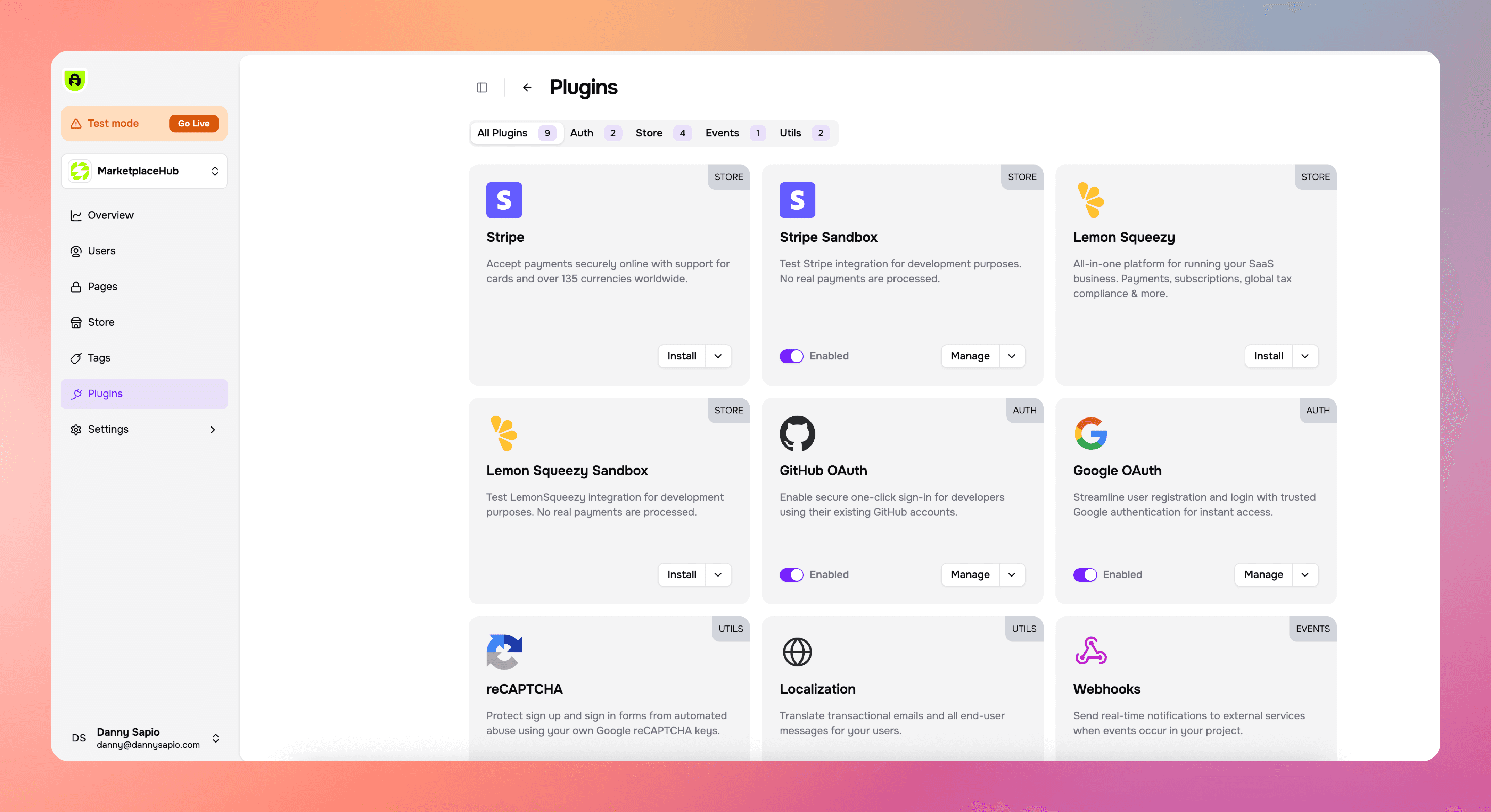
Plugins allow you to add additional functionality to your membership site like accepting payments or allowing users to sign in with Google.
Stripe Sandbox: Enables testing the Stripe integration for development purposes. No real payments are processed.
Stripe: Accept live payments securely online with support for cards and over 135 currencies worldwide.
Lemon Squeezy Sandbox: Enables testing the Lemon Squeezy integration for development purposes. No real payments are processed.
Lemon Squeezy: Use the merchant of record to accept global payments.
Google OAuth: Streamline user registration and login with trusted Google authentication for instant access.
Github OAuth: Enable secure one-click sign-in for developers using their existing GitHub accounts.
Localization: Show error messages and send transactional emails in the language of your choosing.
ReCaptcha: Prevent bots from spamming your sign up form.
Webhooks: Send information like new sign up data to a 3rd party platform like Zapier for automations.
5
Create tags for products
If you're not selling anything, you can skip this step.
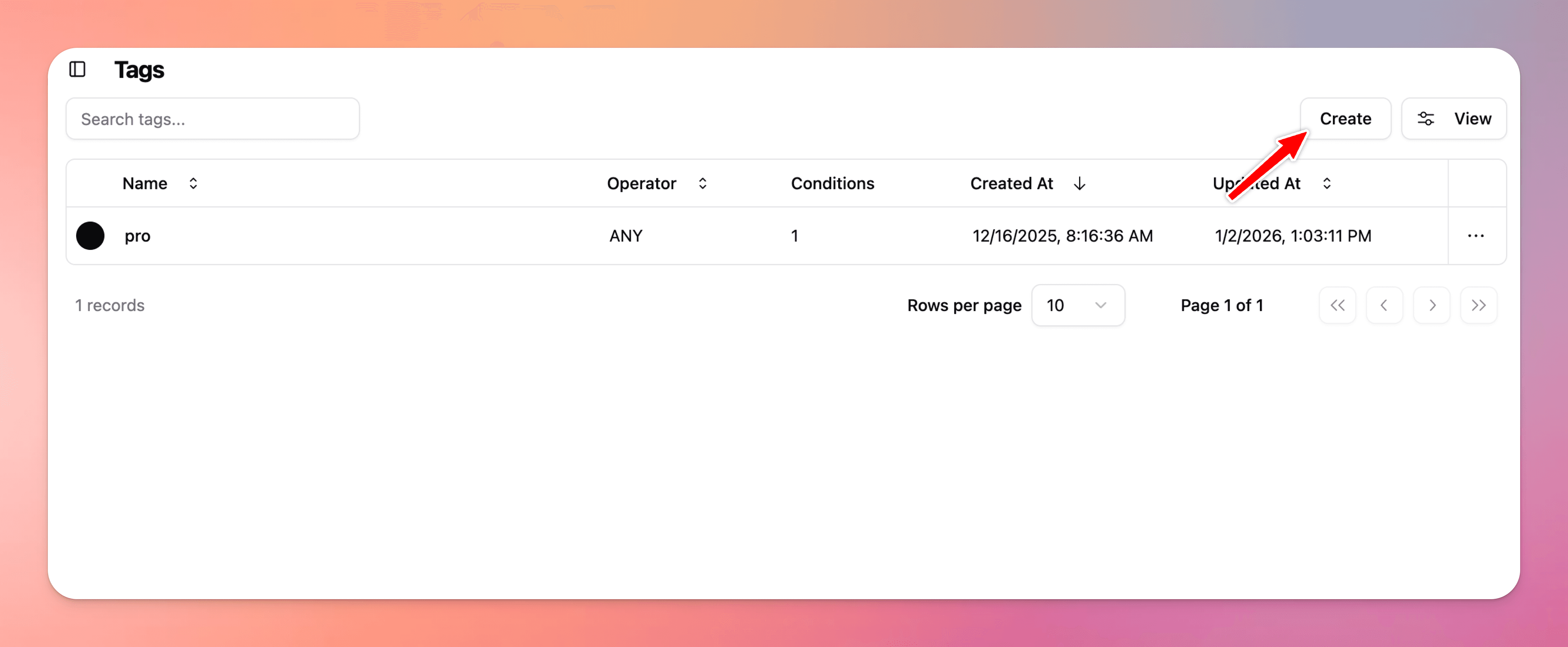
Tags are used to grant access to locked content.
Tags allow us to grant access to our users when conditions are met. When your user purchases specified products, tags will be assigned based on conditions that are set.
6
Create custom fields (optional)
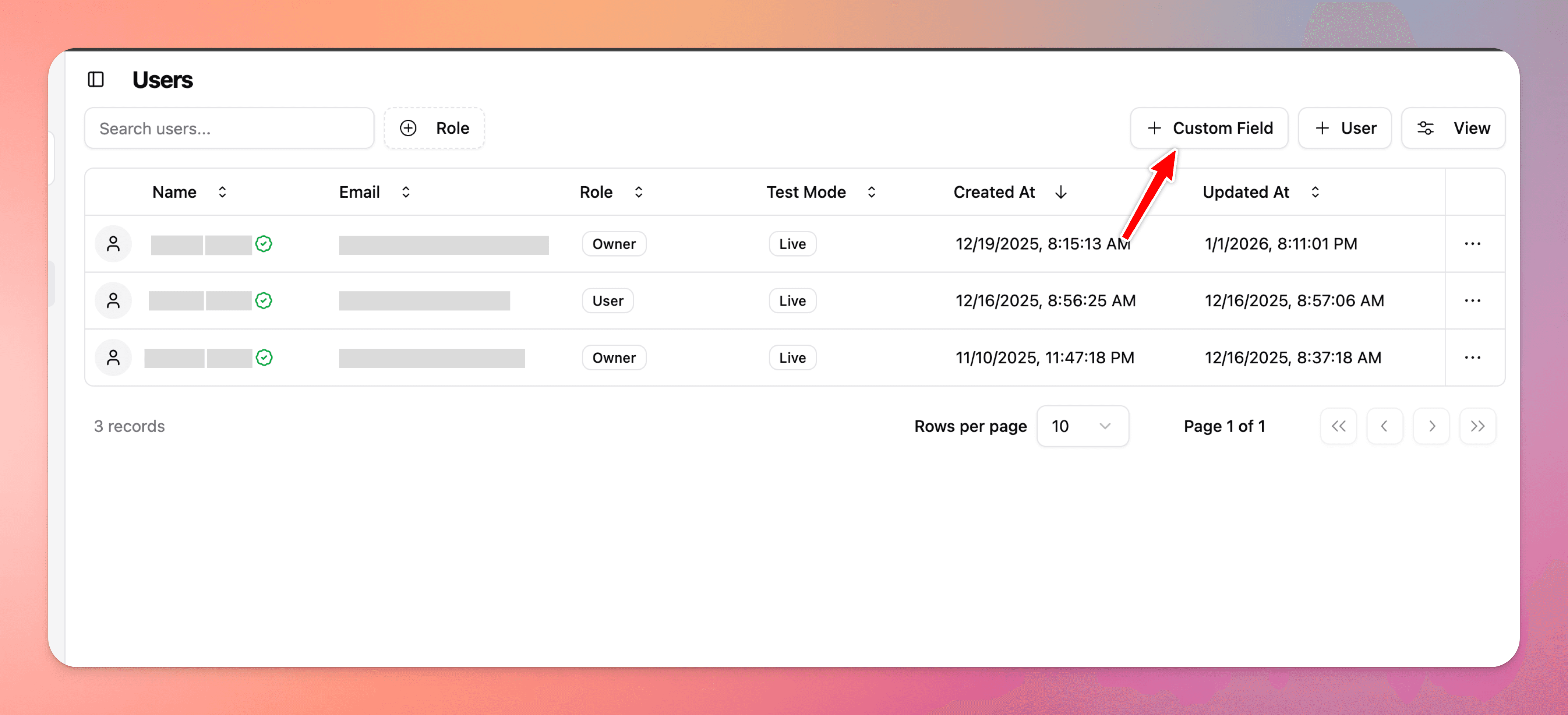
To collect additional information about your users, you can add a custom field on the users page. This new field will be shown on the Sign Up and Profile form.
7
Lock pages in the dashboard
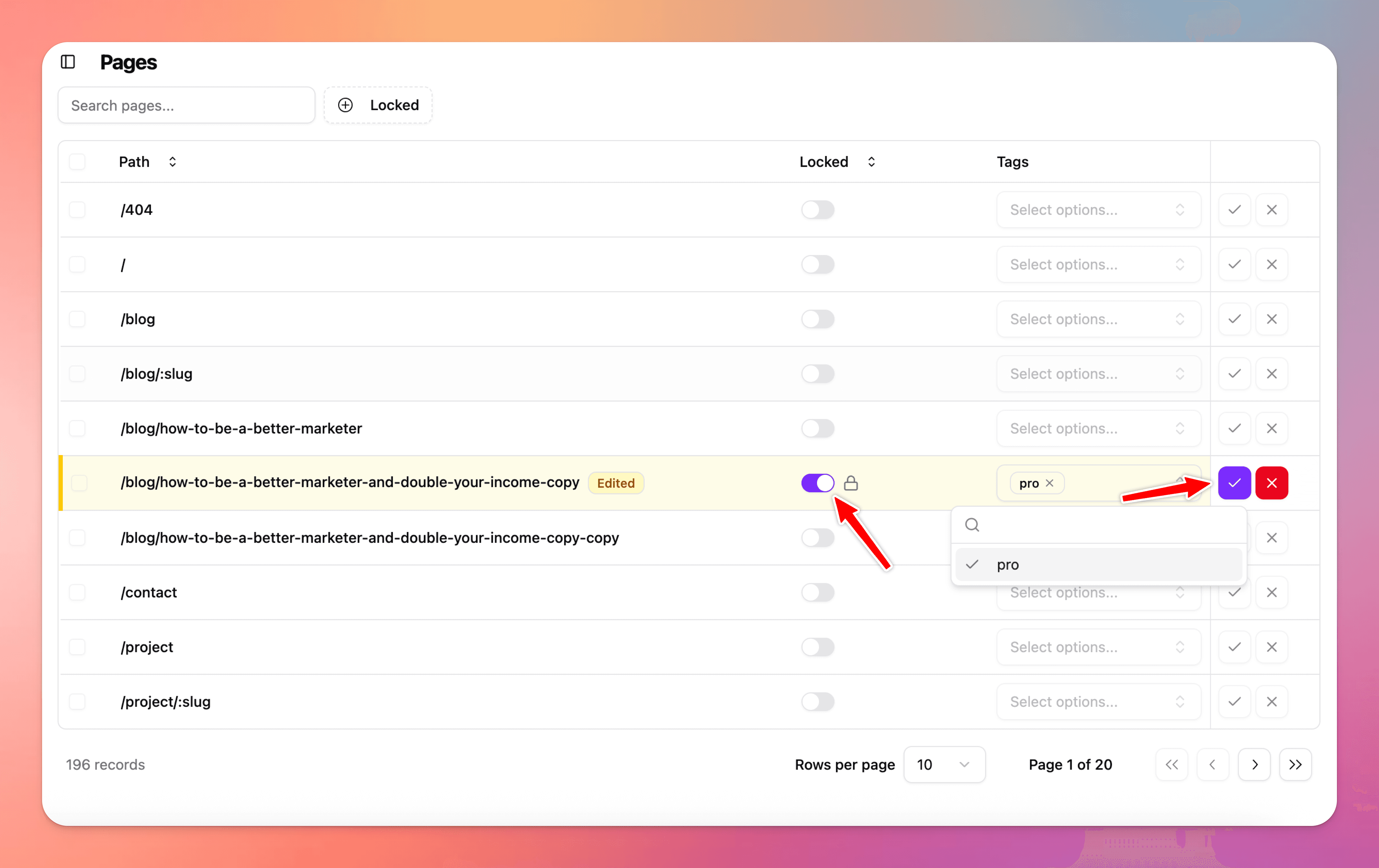
A locked page makes it accessible only to users who are signed in. If you apply a tag, that means the user must be signed in and hold that tag. Tags can be granted from purchases using tag conditions or you can apply them manually from the user page.
8
Lock on-page content using overrides
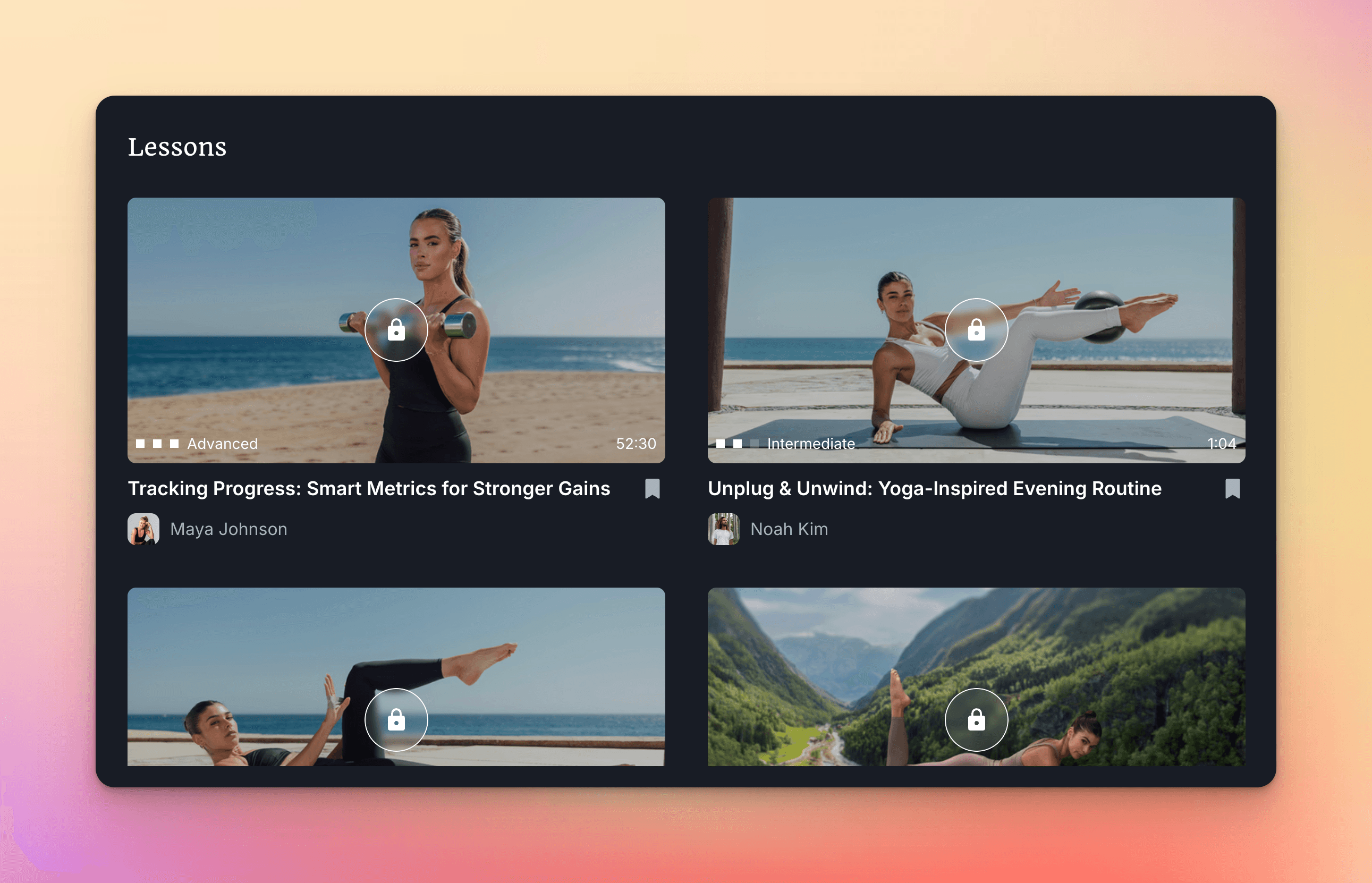
If you're building a Framer site with member-only content, premium downloads, or exclusive pages, you might want to show a locked version of an element until certain conditions are met like a user being logged in or after a specific purchase.
Locked until someone purchases: ToggleVariantIfWithTag
Locked until someone signs up or signs in: ToggleVariant
9
Test your website
Before going live, thoroughly test all functionality in test mode.
Confirm the following work as expected:
Sign in
Sign up
Resetting Password
Locked content
Purchases
Social sign on
Sign in with OTP
10
Connect subdomain and go live
Live mode ensures that all users who sign up will be set as 'live' users on the users page in the dashboard. Only live users can complete live Stripe purchases.
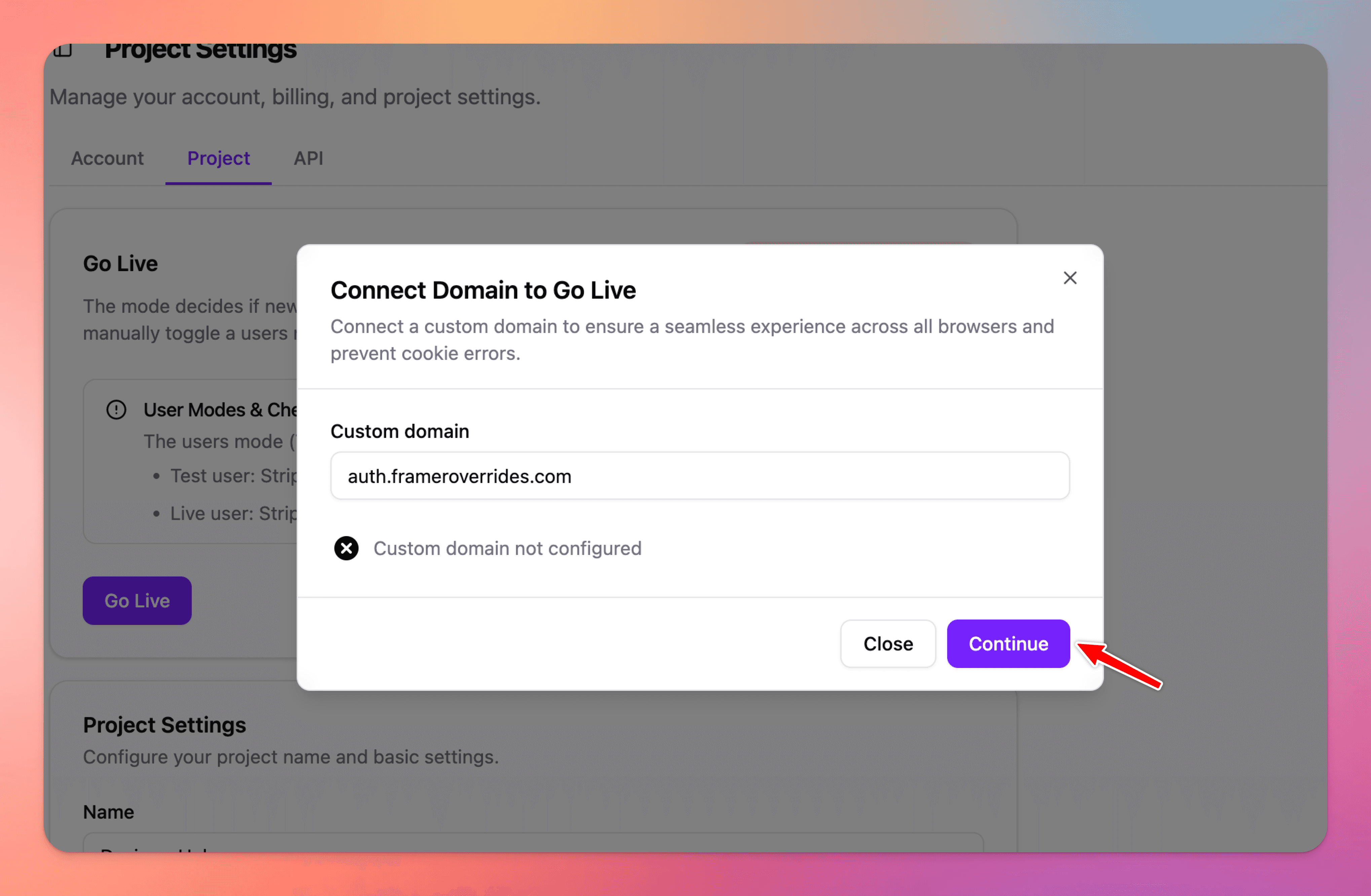
Once your website has been thoroughly tested and is ready to be moved to live mode, navigate to the project settings and click go live.
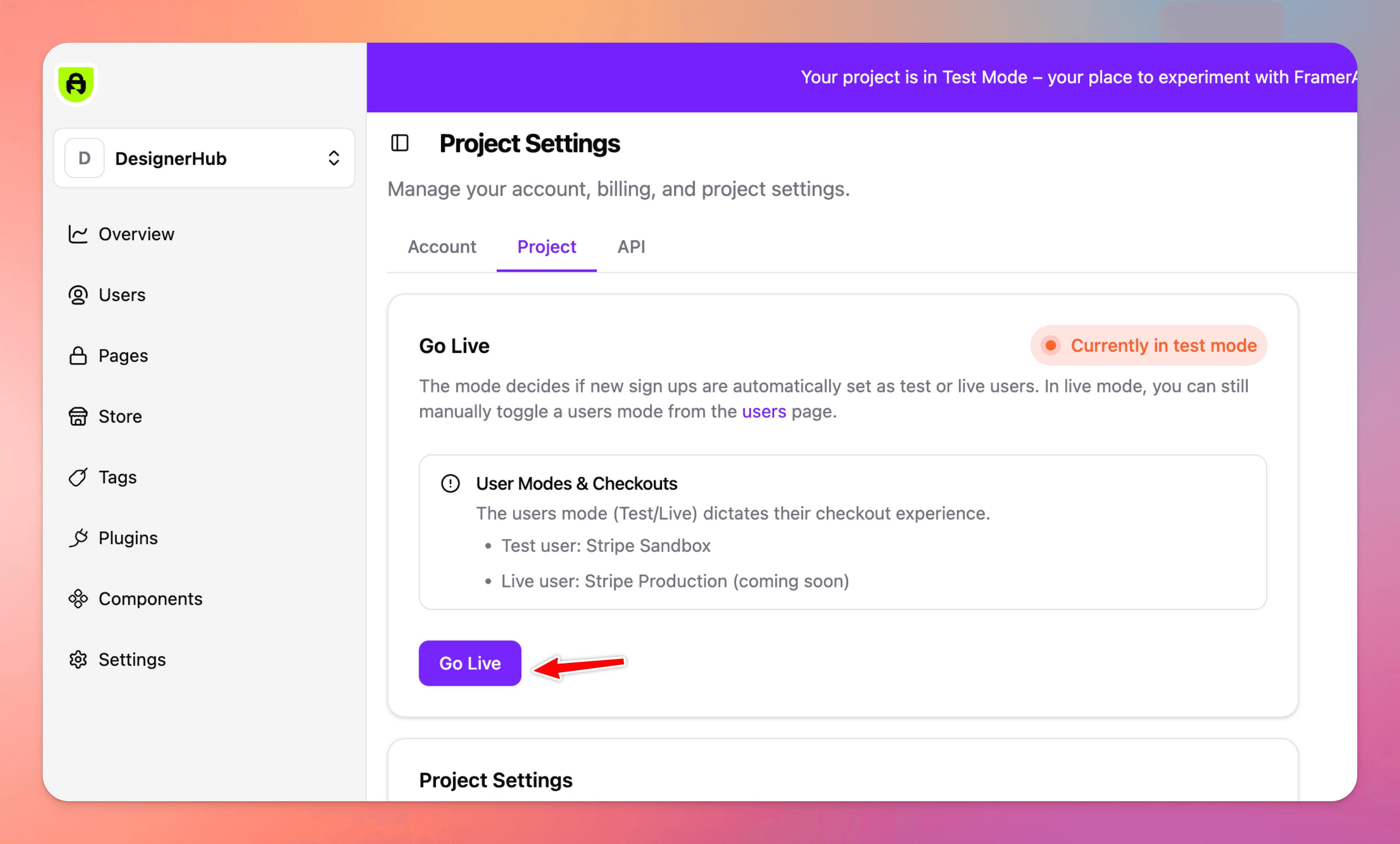
After going live, you will be prompted to connect a custom subdomain. This is a required step to ensure no cookie errors occur.
This subdomain is not customer-facing.
It is used internally by FrameAuth to manage cookies.
Recommended format:
auth.yoursite.com
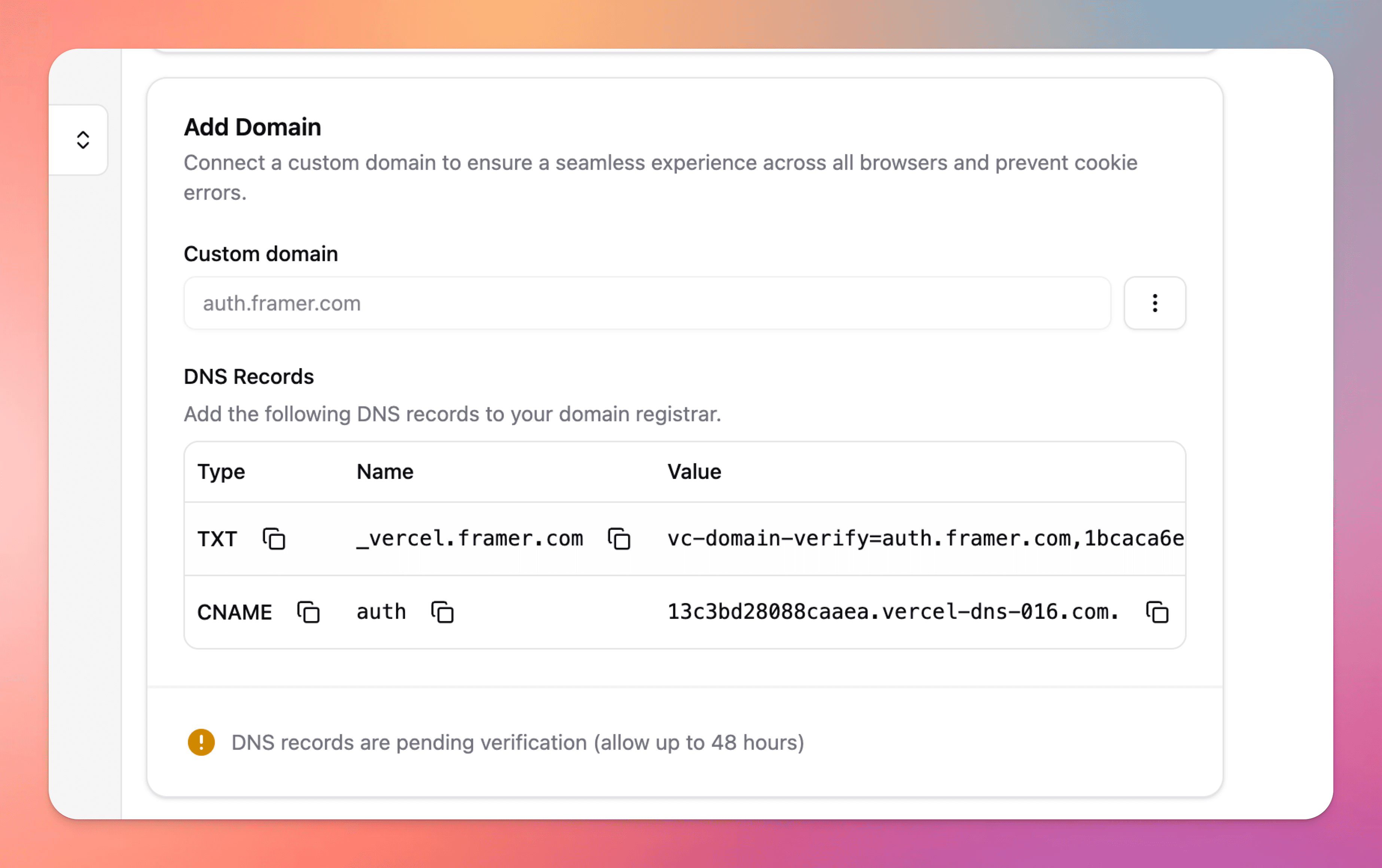
Add the required DNS records provided in the dashboard.
You will then need to add these two records to your site's DNS records.
11
Launch Complete! 🎉
Your site is now live and fully powered by FrameAuth!
Authentication is fully enabled
Payments are processed in live mode
Access rules are enforced for all users
You can now begin onboarding real users and accepting live purchases.
Agent setup
Setup manually
1
Open the FrameAuth plugin in Framer and sign in
Launch our free Framer authentication plugin and sign up or sign in to gain access to FrameAuth features.
2
Connect your project
Once you've signed in, select your project then click 'connect.'
3
Use the prompt
This Framer agent will build a complete sign-up/sign-in/forgot-password/reset-password flow plus an account page for your Framer site using FrameAuth, matching your existing design system exactly then wires up your navigation to show the right links based on whether someone's logged in.
If you'd prefer an OTP sign up/in flow instead, use the OTP prompt.
Title
Copy
prompt:
# CONTEXT
This site uses FrameAuth, a no-code authentication plugin for Framer. Authentication
UI is delivered as remote code components embedded by URL, and behavior is wired up
with overrides from an existing overrides file in the project named `FramerAuthV2.tsx`.
My task for you is to build the full membership experience: sign-up, sign-in, forgot
password, reset password, an account page, and navigation that reflects logged-in state.

# ROLE
You are a senior Framer web designer building on an existing site. You work within
the site's established design system and never introduce new visual conventions.

# GLOBAL RULES
- Embed components from the exact URLs given. Do not substitute, recreate, or rebuild
any form as native Framer layers.
- Apply overrides by their exact names from `FramerAuthV2.tsx`. Do not rename them or write new override code.
- Use the exact slugs given. Do not add, merge, or rename pages.
- Style every embedded new auth page (/sign-up, /sign-in, /forgot-password, /reset-password) identically across all pages, matching the site's existing typography, colors, spacing, corner radii, and button styles. The /sign-up page sets the styling standard; /sign-in, /forgot-password, and /reset-password must match it exactly.
- Keep all pages consistent with each other and with the rest of the site: same page container width, same vertical rhythm, same heading and body text styles.
- Write short, plain subtext. One or two lines, no marketing filler.
- If the FramerAuthV2.tsx override file is not present in this file. Abort all tasks and report back that "The FrameAuth plugin is not installed. Please open the FrameAuth plugin and connect your project to continue — https://frameauth.com/plugin"
- Include tablet and phone breakpoints for all pages created.

# TASKS

## Page 1 — Sign Up (slug: /sign-up)
- Embed the sign-up form: https://framer.com/m/SignUp-Rcig.js
- The redirect control on this form should point to the /home page
- Title: "Sign Up", plus supporting subtext.
- Link to /sign-in with the text: "Already have an account? Sign in"

## Page 2 — Sign In (slug: /sign-in)
- Embed the sign-in form: https://framer.com/m/SignIn-bdt0.js
- The redirect control on this form should point to the /home page
- Style it identically to the /sign-up page.
- Link to /sign-up with the text: "Don't have an account yet? Sign up"
- Link to /forgot-password with the text: "Forgot password?"

## Page 3 — Forgot Password (slug: /forgot-password)
- Embed the forgot password form: https://framer.com/m/ForgotPassword-xqdO.js
- No redirect control is set on this form.
- Style it identically to the /sign-up and /sign-in pages.
- Title: "Forgot Password", plus supporting subtext.

## Page 4 — Reset Password (slug: /reset-password)
- Embed the reset password form: https://framer.com/m/ResetPassword-6UtC.js
- The redirect control on this form should point to the /sign-in page
- Style it identically to the /sign-up, /sign-in, and /forgot-password pages.
- Title: "Reset Password", plus supporting subtext.

## Page 5 — Account (slug: /account)
- Embed the profile form: https://framer.com/m/Profile-k0Rd.js
- Embed the profile image component: https://framer.com/m/ProfileImage-ywvA.js
- Add a text layer with the text "Name" and apply the `Name` override from
`FramerAuthV2.tsx`.
- Add a second text layer with the text "Email" and apply the `EmailAddress` override from
`FramerAuthV2.tsx`.
- Add a button that says "Sign Out" with the `SignOut` override applied.

## Global navigation component
Add 3 new text links and place them in the site's global navigation along with any existing links to pages.

- A text link that says "Account", linking to /account (apply override ShowIfSignedIn from FramerAuth.tsx)
- A text link that says "Sign In", linking to /sign-in (apply override ShowIfSignedOut from FramerAuth.tsx)
- A text link that says "Sign Up", linking to /sign-up (apply override ShowIfSignedOut from FramerAuth.tsx)

# OUTPUT
Build everything above. Then report back with:
1. Each page created, with its slug and the components embedded on it.
2. Each override applied, and the exact layer it is applied to.
3. Each redirect set, and its destination.
4. Anything you could not complete and why
ChatGPT 5.6 Sol, Medium (Recommended)
Limitation:
The agent currently cannot apply styling to a FrameAuth form. Apply styling manually with the controls or use the shortcut to copy styles from a form in the Blocks file:
4
Configure plugins for FrameAuth
Plugins allow you to add additional functionality to your membership site like accepting payments or allowing users to sign in with Google.
Stripe Sandbox: Enables testing the Stripe integration for development purposes. No real payments are processed.
Stripe: Accept live payments securely online with support for cards and over 135 currencies worldwide.
Lemon Squeezy Sandbox: Enables testing the Lemon Squeezy integration for development purposes. No real payments are processed.
Lemon Squeezy: Use the merchant of record to accept global payments.
Google OAuth: Streamline user registration and login with trusted Google authentication for instant access.
Github OAuth: Enable secure one-click sign-in for developers using their existing GitHub accounts.
Localization: Show error messages and send transactional emails in the language of your choosing.
ReCaptcha: Prevent bots from spamming your sign up form.
Webhooks: Send information like new sign up data to a 3rd party platform like Zapier for automations.
5
Create tags for products
If you're not selling anything, you can skip this step.
Tags are used to grant access to locked content.
Tags allow us to grant access to our users when conditions are met. When your user purchases specified products, tags will be assigned based on conditions that are set.
6
Create custom fields (optional)
To collect additional information about your users, you can add a custom field on the users page. This new field will be shown on the Sign Up and Profile form.
7
Lock pages in the dashboard
A locked page makes it accessible only to users who are signed in. If you apply a tag, that means the user must be signed in and hold that tag. Tags can be granted from purchases using tag conditions or you can apply them manually from the user page.
8
Lock on-page content using overrides
If you're building a Framer site with member-only content, premium downloads, or exclusive pages, you might want to show a locked version of an element until certain conditions are met like a user being logged in or after a specific purchase.
Locked until someone purchases: ToggleVariantIfWithTag
Locked until someone signs up or signs in: ToggleVariant
9
Test your website
Before going live, thoroughly test all functionality in test mode.
Confirm the following work as expected:
Sign in
Sign up
Resetting Password
Locked content
Purchases
Social sign on
Sign in with OTP
10
Connect subdomain and go live
Live mode ensures that all users who sign up will be set as 'live' users on the users page in the dashboard. Only live users can complete live Stripe purchases.
Once your website has been thoroughly tested and is ready to be moved to live mode, navigate to the project settings and click go live.
After going live, you will be prompted to connect a custom subdomain. This is a required step to ensure no cookie errors occur.
This subdomain is not customer-facing.
It is used internally by FrameAuth to manage cookies.
Recommended format:
auth.yoursite.com
Add the required DNS records provided in the dashboard.
You will then need to add these two records to your site's DNS records.
11
Launch Complete! 🎉
Your site is now live and fully powered by FrameAuth!
Authentication is fully enabled
Payments are processed in live mode
Access rules are enforced for all users
You can now begin onboarding real users and accepting live purchases.
Agent setup
Setup manually
1
Open the FrameAuth plugin in Framer and sign in
Launch our free Framer authentication plugin and sign up or sign in to gain access to FrameAuth features.
2
Connect your project
Once you've signed in, select your project then click 'connect.'
3
Use the prompt
This Framer agent will build a complete sign-up/sign-in/forgot-password/reset-password flow plus an account page for your Framer site using FrameAuth, matching your existing design system exactly then wires up your navigation to show the right links based on whether someone's logged in.
If you'd prefer an OTP sign up/in flow instead, use the OTP prompt.
Title
Copy
prompt:
# CONTEXT
This site uses FrameAuth, a no-code authentication plugin for Framer. Authentication
UI is delivered as remote code components embedded by URL, and behavior is wired up
with overrides from an existing overrides file in the project named `FramerAuthV2.tsx`.
My task for you is to build the full membership experience: sign-up, sign-in, forgot
password, reset password, an account page, and navigation that reflects logged-in state.

# ROLE
You are a senior Framer web designer building on an existing site. You work within
the site's established design system and never introduce new visual conventions.

# GLOBAL RULES
- Embed components from the exact URLs given. Do not substitute, recreate, or rebuild
any form as native Framer layers.
- Apply overrides by their exact names from `FramerAuthV2.tsx`. Do not rename them or write new override code.
- Use the exact slugs given. Do not add, merge, or rename pages.
- Style every embedded new auth page (/sign-up, /sign-in, /forgot-password, /reset-password) identically across all pages, matching the site's existing typography, colors, spacing, corner radii, and button styles. The /sign-up page sets the styling standard; /sign-in, /forgot-password, and /reset-password must match it exactly.
- Keep all pages consistent with each other and with the rest of the site: same page container width, same vertical rhythm, same heading and body text styles.
- Write short, plain subtext. One or two lines, no marketing filler.
- If the FramerAuthV2.tsx override file is not present in this file. Abort all tasks and report back that "The FrameAuth plugin is not installed. Please open the FrameAuth plugin and connect your project to continue — https://frameauth.com/plugin"
- Include tablet and phone breakpoints for all pages created.

# TASKS

## Page 1 — Sign Up (slug: /sign-up)
- Embed the sign-up form: https://framer.com/m/SignUp-Rcig.js
- The redirect control on this form should point to the /home page
- Title: "Sign Up", plus supporting subtext.
- Link to /sign-in with the text: "Already have an account? Sign in"

## Page 2 — Sign In (slug: /sign-in)
- Embed the sign-in form: https://framer.com/m/SignIn-bdt0.js
- The redirect control on this form should point to the /home page
- Style it identically to the /sign-up page.
- Link to /sign-up with the text: "Don't have an account yet? Sign up"
- Link to /forgot-password with the text: "Forgot password?"

## Page 3 — Forgot Password (slug: /forgot-password)
- Embed the forgot password form: https://framer.com/m/ForgotPassword-xqdO.js
- No redirect control is set on this form.
- Style it identically to the /sign-up and /sign-in pages.
- Title: "Forgot Password", plus supporting subtext.

## Page 4 — Reset Password (slug: /reset-password)
- Embed the reset password form: https://framer.com/m/ResetPassword-6UtC.js
- The redirect control on this form should point to the /sign-in page
- Style it identically to the /sign-up, /sign-in, and /forgot-password pages.
- Title: "Reset Password", plus supporting subtext.

## Page 5 — Account (slug: /account)
- Embed the profile form: https://framer.com/m/Profile-k0Rd.js
- Embed the profile image component: https://framer.com/m/ProfileImage-ywvA.js
- Add a text layer with the text "Name" and apply the `Name` override from
`FramerAuthV2.tsx`.
- Add a second text layer with the text "Email" and apply the `EmailAddress` override from
`FramerAuthV2.tsx`.
- Add a button that says "Sign Out" with the `SignOut` override applied.

## Global navigation component
Add 3 new text links and place them in the site's global navigation along with any existing links to pages.

- A text link that says "Account", linking to /account (apply override ShowIfSignedIn from FramerAuth.tsx)
- A text link that says "Sign In", linking to /sign-in (apply override ShowIfSignedOut from FramerAuth.tsx)
- A text link that says "Sign Up", linking to /sign-up (apply override ShowIfSignedOut from FramerAuth.tsx)

# OUTPUT
Build everything above. Then report back with:
1. Each page created, with its slug and the components embedded on it.
2. Each override applied, and the exact layer it is applied to.
3. Each redirect set, and its destination.
4. Anything you could not complete and why
ChatGPT 5.6 Sol, Medium (Recommended)
Limitation:
The agent currently cannot apply styling to a FrameAuth form. Apply styling manually with the controls or use the shortcut to copy styles from a form in the Blocks file:
4
Configure plugins for FrameAuth
Plugins allow you to add additional functionality to your membership site like accepting payments or allowing users to sign in with Google.
Stripe Sandbox: Enables testing the Stripe integration for development purposes. No real payments are processed.
Stripe: Accept live payments securely online with support for cards and over 135 currencies worldwide.
Lemon Squeezy Sandbox: Enables testing the Lemon Squeezy integration for development purposes. No real payments are processed.
Lemon Squeezy: Use the merchant of record to accept global payments.
Google OAuth: Streamline user registration and login with trusted Google authentication for instant access.
Github OAuth: Enable secure one-click sign-in for developers using their existing GitHub accounts.
Localization: Show error messages and send transactional emails in the language of your choosing.
ReCaptcha: Prevent bots from spamming your sign up form.
Webhooks: Send information like new sign up data to a 3rd party platform like Zapier for automations.
5
Create tags for products
If you're not selling anything, you can skip this step.
Tags are used to grant access to locked content.
Tags allow us to grant access to our users when conditions are met. When your user purchases specified products, tags will be assigned based on conditions that are set.
6
Create custom fields (optional)
To collect additional information about your users, you can add a custom field on the users page. This new field will be shown on the Sign Up and Profile form.
7
Lock pages in the dashboard
A locked page makes it accessible only to users who are signed in. If you apply a tag, that means the user must be signed in and hold that tag. Tags can be granted from purchases using tag conditions or you can apply them manually from the user page.
8
Lock on-page content using overrides
If you're building a Framer site with member-only content, premium downloads, or exclusive pages, you might want to show a locked version of an element until certain conditions are met like a user being logged in or after a specific purchase.
Locked until someone purchases: ToggleVariantIfWithTag
Locked until someone signs up or signs in: ToggleVariant
9
Test your website
Before going live, thoroughly test all functionality in test mode.
Confirm the following work as expected:
Sign in
Sign up
Resetting Password
Locked content
Purchases
Social sign on
Sign in with OTP
10
Connect subdomain and go live
Live mode ensures that all users who sign up will be set as 'live' users on the users page in the dashboard. Only live users can complete live Stripe purchases.
Once your website has been thoroughly tested and is ready to be moved to live mode, navigate to the project settings and click go live.
After going live, you will be prompted to connect a custom subdomain. This is a required step to ensure no cookie errors occur.
This subdomain is not customer-facing.
It is used internally by FrameAuth to manage cookies.
Recommended format:
auth.yoursite.com
Add the required DNS records provided in the dashboard.
You will then need to add these two records to your site's DNS records.
11
Launch Complete! 🎉
Your site is now live and fully powered by FrameAuth!
Authentication is fully enabled
Payments are processed in live mode
Access rules are enforced for all users
You can now begin onboarding real users and accepting live purchases.
FAQ
Can I run FrameAuth without a public sign-up page?
Yes. Accounts can instead be created through a purchase or a manual invite.
Is the custom subdomain shown to customers?
No. FrameAuth uses it internally to manage cookies and prevent cookie errors.
Updated:
Need help? Talk with a human.