Intermediate
How To Migrate A FrameAuth Site From V1 To V2
Upgrade your FrameAuth powered Framer site from V1 to V2 to get the latest membership and payment features. Step by step.

Migrating from V1
VIDEO
V2 is a ground-up rebuild designed to help you build more powerful membership websites in Framer without code.
Migrating to V2 unlocks a more flexible access system, improved payment flows, stronger project management, updated components, and a better experience for your members.
Before you can start using V2 on your live site, you will need to migrate your existing V1 project. Some parts of the migration happen automatically, while others require manual updates inside Framer. This guide will walk you through the full process.
We'll migrate your site for free
If you’d rather not handle the setup yourself, reach out and we’ll migrate your project for you.
Migrating to V2 is optional. Legacy will remain fully functional.
New features in V2
Payments:
Stripe, Lemon Squeezy, multi-product (Stripe, Lemon Squeezy)
Project management:
Team access, multi-project, analytics
Auth:
OTP, OAuth (Google, GitHub), email verification, validation (new user approve/reject)
Features:
Webhooks, API
User:
Tags, custom fields, profile photo
Data that will be migrated
Users
Purchases + access
Bookmarks
Considerations before migrating
Migrating from legacy (V1/beta) to V2 comes with a few important considerations to keep in mind to ensure a smoothly transition.
Please review carefully the following:
Test data does not get migrated. No sandbox products, purchases, or users get migrated.
Locked pages are not automatically migrated and will need to be re-locked in V2.
Lemon Squeezy license keys are no longer used/needed in V2.
You must use the new ActionButton component to trigger checkouts. Lemon Squeezy links will not work.
Passwords do not migrate. In V2, users can use passwordless options like OTP, OAuth, or set a new password via the forgot password form.
How to migrate to V2
Now that you've learned about the limitations and considerations, let's migrate:
1
Create a V2 account
If you haven't already, please sign up for a V2 account. Your existing email will only allow you to sign in to V1.
After signing up you will have two accounts, one for V1 and one for V2.
2
Connect Lemon Squeezy
If you did not use Lemon Squeezy in V1, skip this step.
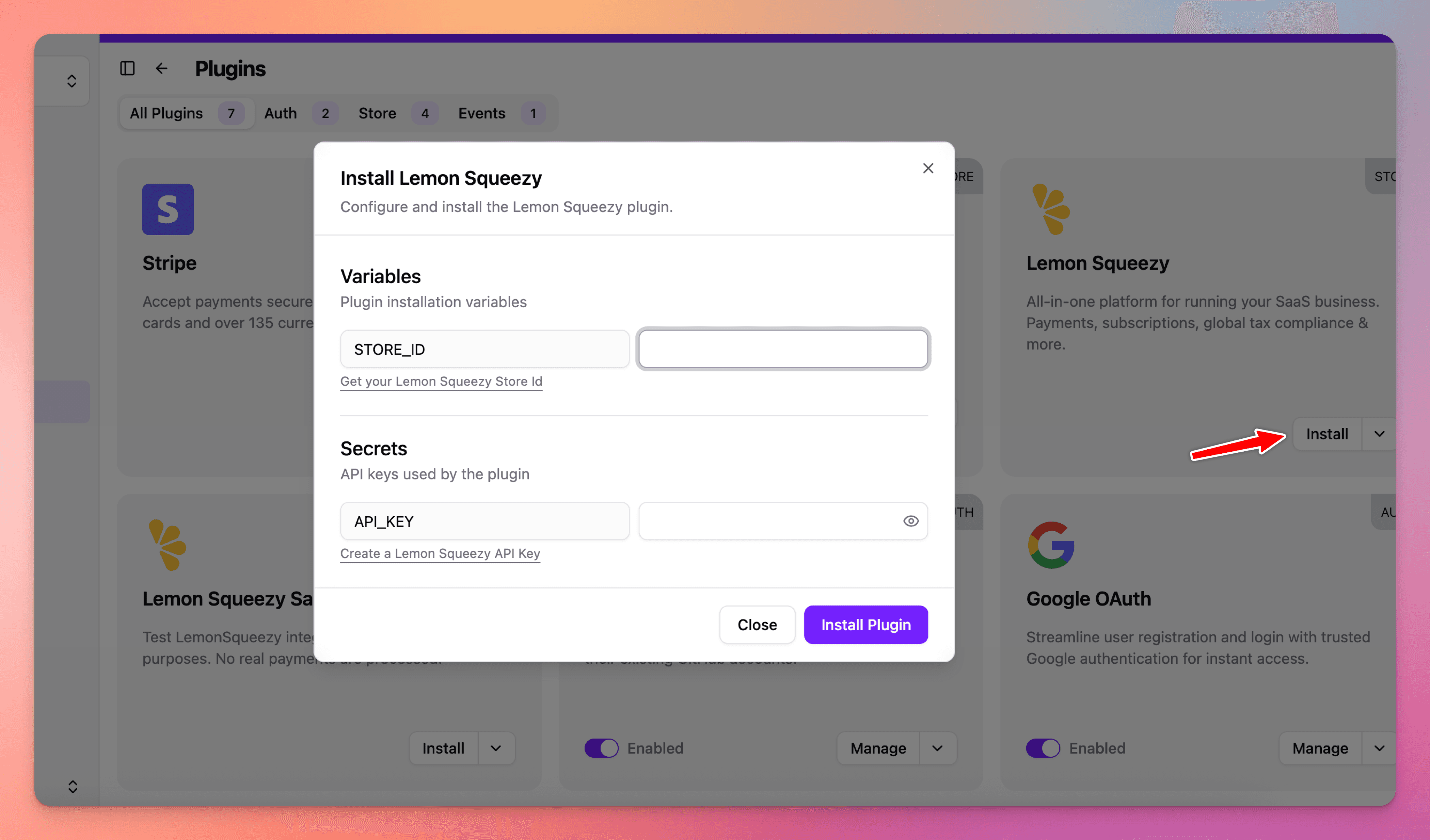
Go to the plugins page and connect your live mode Lemon Squeezy store.
When creating your API key, set the expiration date at least 5 years in the future so you do not need to replace it soon.
Note: Testing data and sandbox purchases will not be migrated. Only live Lemon Squeezy data is imported.
3
Start the migration
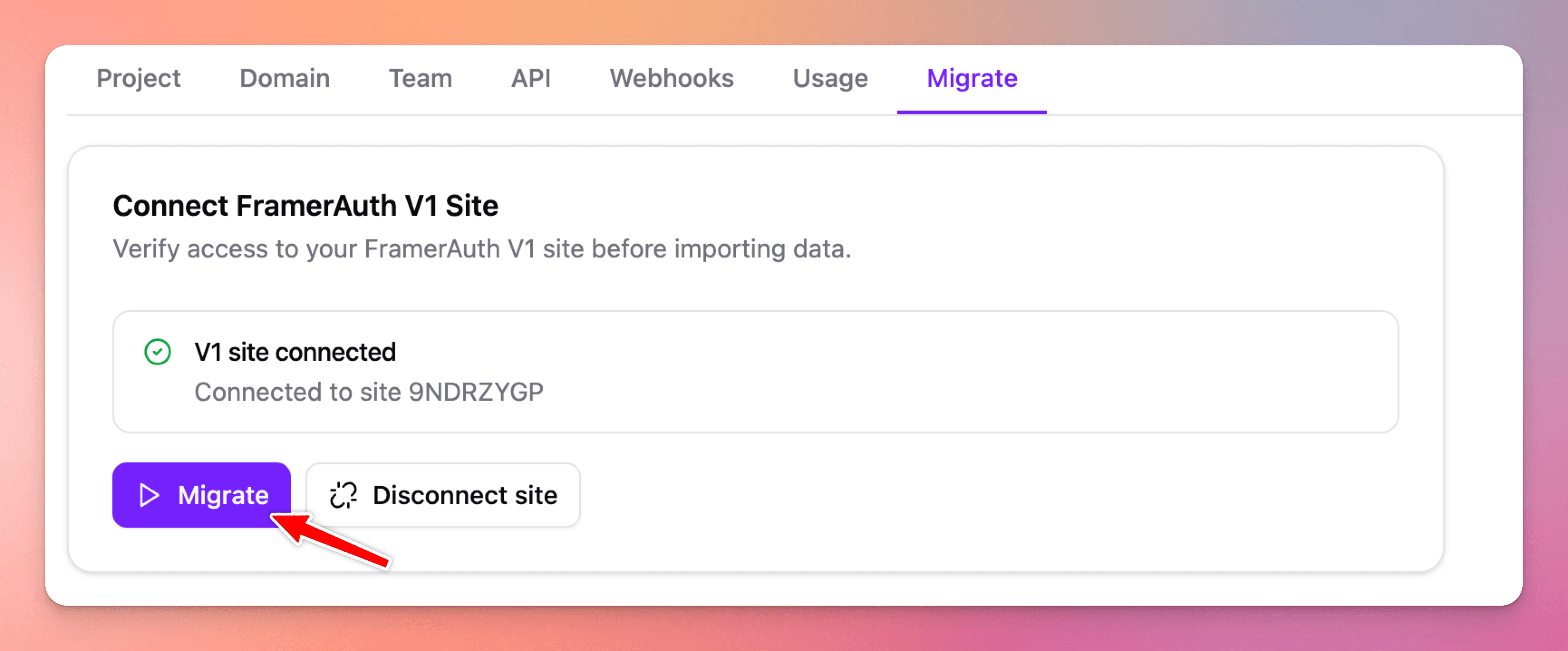
Go to the migration page.
Click 'connect site' then sign in with your V1 email address to connect your legacy site, then start the migration.
Monitor the migration progress (you can close the page/website). Depending on the size of your V1 dataset, the migration can take anywhere from 1 minute to 3 hours.
4
Remove the existing snippet
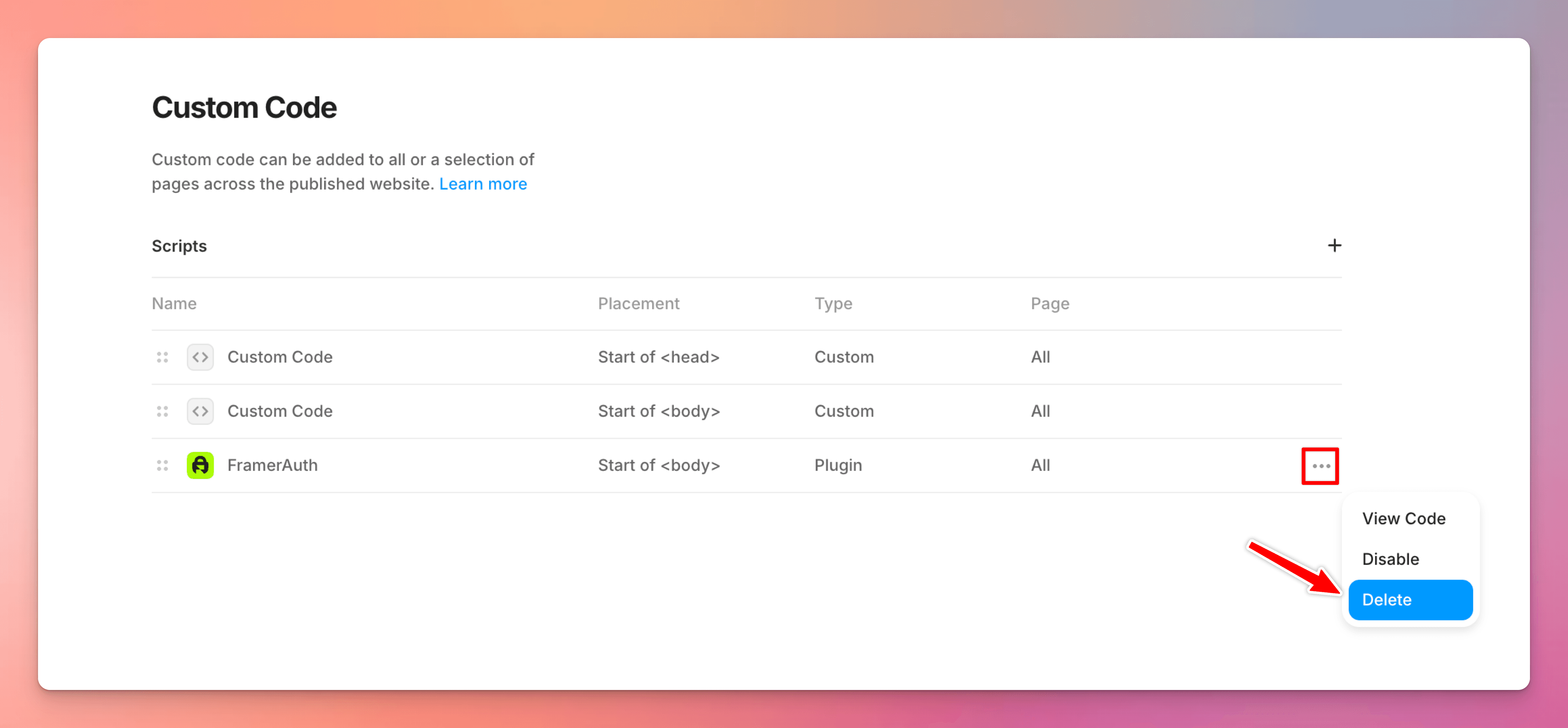
Go to your Framer project settings and open the Custom Code section.
Remove any snippets that were added manually or by the legacy plugin.
The snippet is usually located at the start of the <body> section.
5
Connect your V2 project to your Framer site
Open the plugin, sign in to your V2 account, select your project, and click connect.
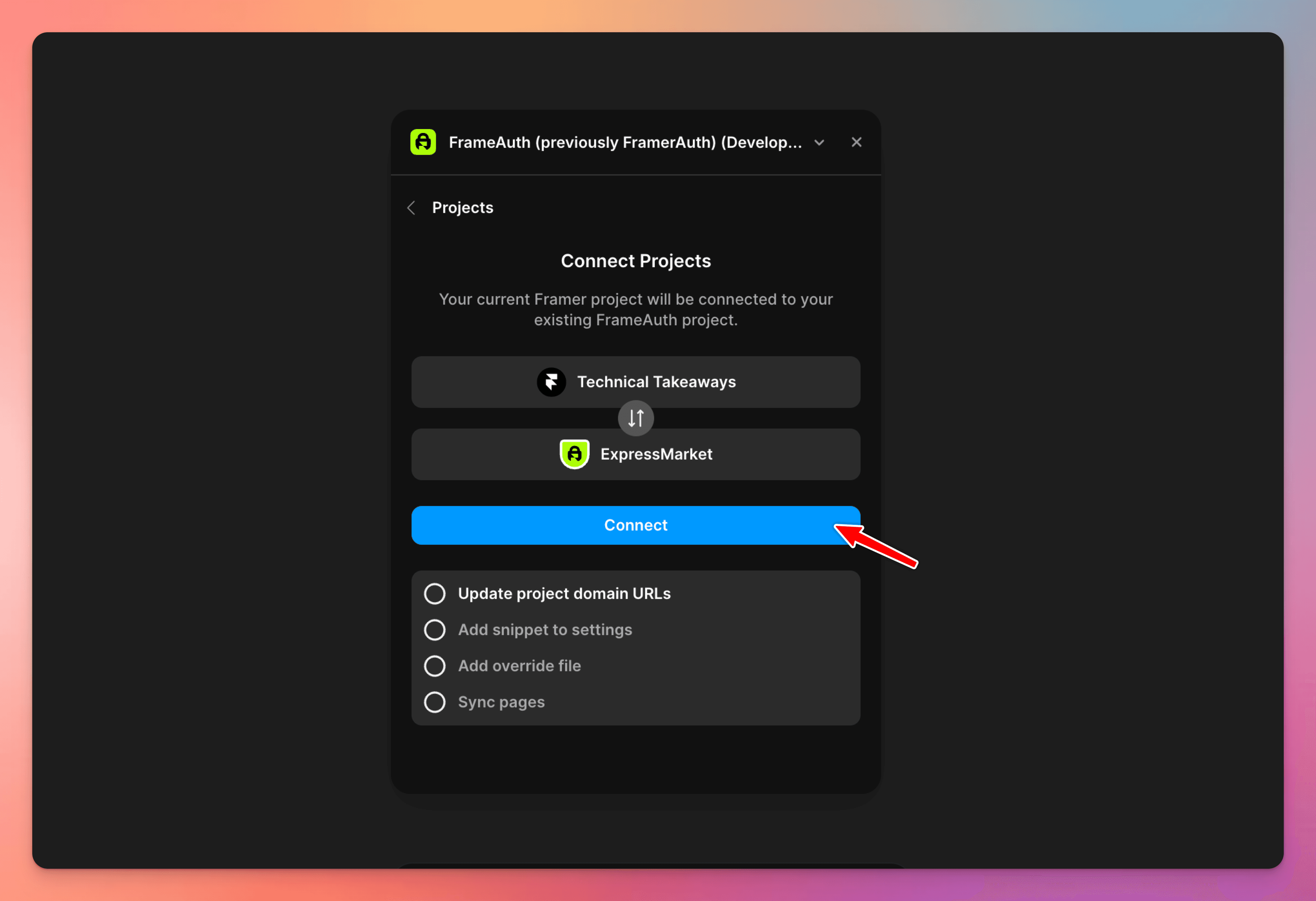
Note: if a warning message appears, it will display the same warnings that were mentioned above.
Connecting your project to V2 will not interfere with your existing V1 site or setup. You can undo the migration at any point if you choose to go back to the legacy version for any reason.
If you have any questions or concerns, chat with us.
6
Replace old overrides with V2 ones
Use the agent to replace old overrides with new ones. We recommend using ChatGPT 5.6 Sol (Medium) for this task. The agent will find all instances of old overrides and replace them with the new overrides from the FramerAuthV2.tsx file that was imported from the plugin.
Replace overrides
Copy
# ROLE
You are a senior Framer web designer performing a version migration on an existing
site. You work only within the scope defined below — you do not redesign, restyle,
or "improve" anything beyond what is explicitly listed.

# CONTEXT
This site currently runs FrameAuth V1, a no-code authentication plugin for Framer.
I am migrating it to V2. V1 shipped as a body script tag plus a set of named
overrides. V2 replaces the script and renames most overrides (source names now
live in `FramerAuthV2.tsx`). Your job is to find every V1 reference in this project
and migrate it to its V2 equivalent, without altering anything else. Component
migration is out of scope for this pass and will be handled separately.

# GLOBAL RULES
- Treat every mapping below as exact and literal. Do not infer, guess, or apply a
  "close enough" override if it isn't in the mapping list.
- Do not restyle, resize, or reposition anything as part of this migration. Only
  swap the script and overrides per the instructions.
- If you find a reference that matches one of the "custom" patterns described below,
  do not attempt to migrate it — stop and report it instead.
- Work through the site systematically (page by page, then global elements) so
  nothing is missed, and keep a running list of every change you make for the final
  report.

# TASKS

## 1. Replace the V1 script tag
- Search the start of the `<body>` tag for a script formatted **exactly** like this:
  `<script src="https://cdn.framerauth.com/packages/sdk/live/latest/framerauth.js" site-id="9NDRZYGP"></script>`
- The `site-id` value is unique per site — match on the URL and attribute structure,
  not on this specific ID.
- Only remove it if the formatting matches exactly. Do not touch any other script tags.
- In its place, insert the V2 script:
```html
  <script src="https://cdn.jsdelivr.net/npm/@framerauth/sdk@2/dist/framerauth.js" id="framerauth-v2-plugin-script"></script>
```
- Once the migration is complete, if no instances remain, remove the FramerAuth.tsx override file (or whichever file name had the old overrides)

## 2. Migrate overrides
Find every canvas element referencing a V1 override below. Detach the V1 override
and attach its V2 replacement from `FramerAuthV2.tsx`, using this exact mapping:

| V1 override | V2 override |
|---|---|
| `withLoggedOut` | `ShowIfSignedOut` |
| `withLoggedIn` | `ShowIfSignedIn` |
| `withVariant` | `ToggleVariant` |
| `withVariantActiveLicense` | `ToggleVariantIfWithTag` |
| `withSignOut` | `SignOut` |
| `withActiveLicense` | `ShowIfWithTag` |
| `withNoActiveLicense` | `ShowIfWithoutTag` |
| `FullName` or `FirstName` | `Name` |
| `withIsLessonComplete` | `isComplete` |
| `withActionCompleteLesson` | `CompleteLesson` |
| `withComponentBookmarkBlog` | `BookmarkList` |
| `withIsBookmarkedBlog` | `ShowIfBookmarked` |
| `withToggleBookmarkBlog` | `ToggleBookmark` |

Special cases:
- `withAuth` is deprecated — remove it entirely, do not replace it.
- `withDynamicGridHeight` is deprecated — remove it entirely, do not replace it.
- If you find any `withPlan` override in use, do not migrate it — report it back to
  me by name and tell me it was not automatically migrated, and that I should
  contact https://frameauth.com/support for help migrating custom overrides.
- If you find a custom override such as `withIsBookmarked(customString)` or
  `withPlan(customString)` — for example `withIsBookmarkedProducts` — do not attempt
  to migrate it. Report it back to me by name and tell me it was not automatically
  migrated, and that I should contact https://frameauth.com/support for help
  migrating custom overrides.

# OUTPUT
After completing the migration, report back with:
1. Confirmation the V1 script was found and replaced (or a note that no matching
   script was found).
2. A full list of overrides migrated, with the page/layer they were found on.
3. Any `withPlan` overrides found, flagged for my attention.
4. Any custom overrides found (e.g. `withIsBookmarkedProducts`) that were **not**
   migrated, with a note to contact https://frameauth.com/support.
If your project used a custom withPlan or bookmarking overrides in V1, contact support for help migrating custom overrides.
7
Replace legacy components with V2 components
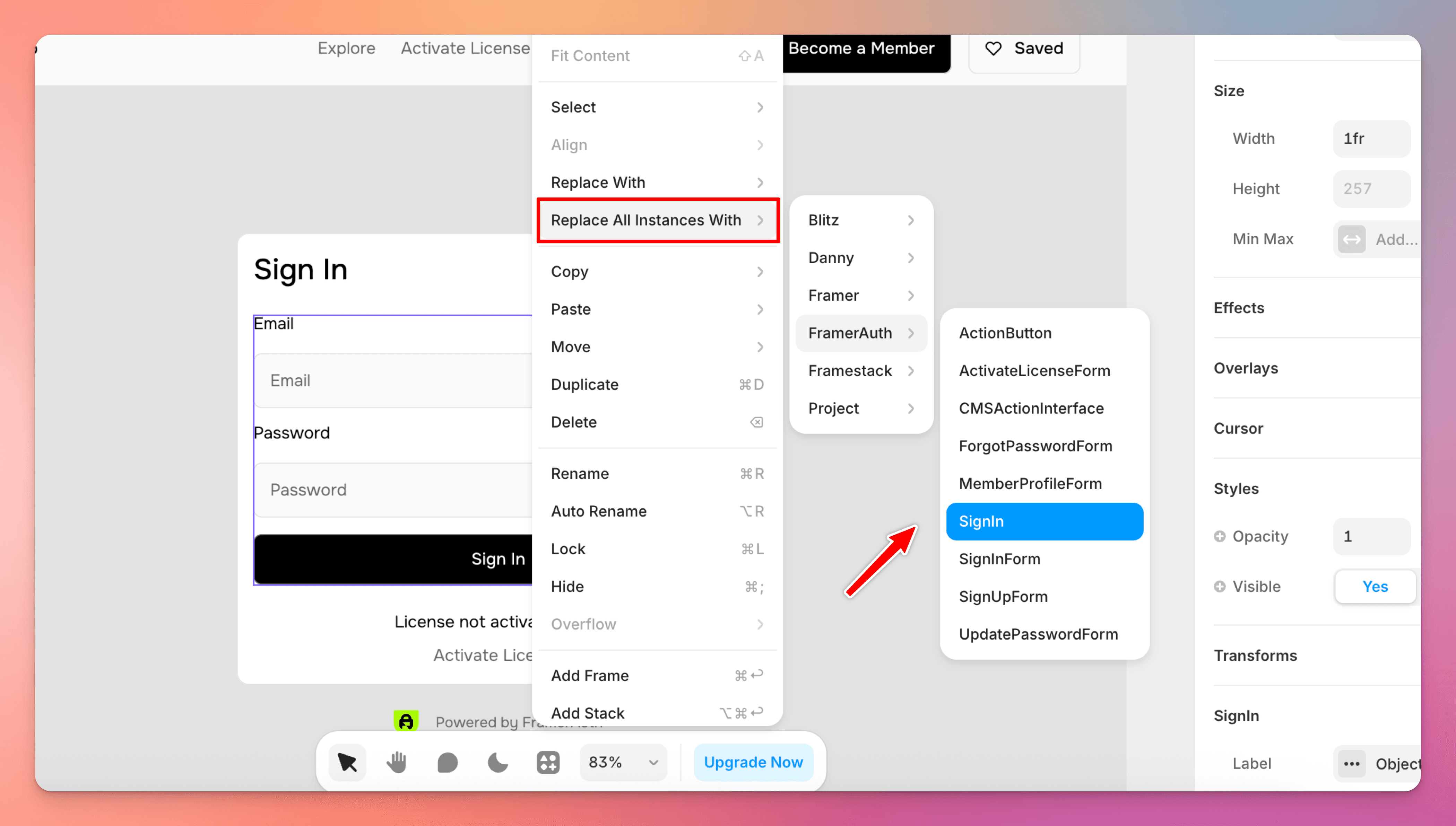
In your Framer project, find the components used in V1 like SignUpForm, SignInForm, etc.
Add the V2 components to the canvas then right click on a V1 component and select 'replace all instances' then select the V2 equivalent.
Legacy forms include "Form" appended at the end while V2 forms do not, so it's easy to distinguish legacy versus V2. For example, the sign in form in legacy is called SignInForm while in V2 it's just called SignIn.
You may also need to rename pages. Double check to make sure your paths pages match. For example, /update-password is called /reset-password in V2.
The V2 pages are:
/sign-in
/sign-up
/forgot-password
/reset-password
/otp
/account
If you used custom page paths in V1, please contact support.
We recommend adding an OTP flow
Existing user's passwords will not be migrated to V2. This means the user can set a new password through the forgot password flow, or what we recommend, is making sign in via OTP your primary sign in.
This will allow your existing users to enter their email address to receive a one-time-password for a seamless login experience.
8
Remove legacy and deprecated components
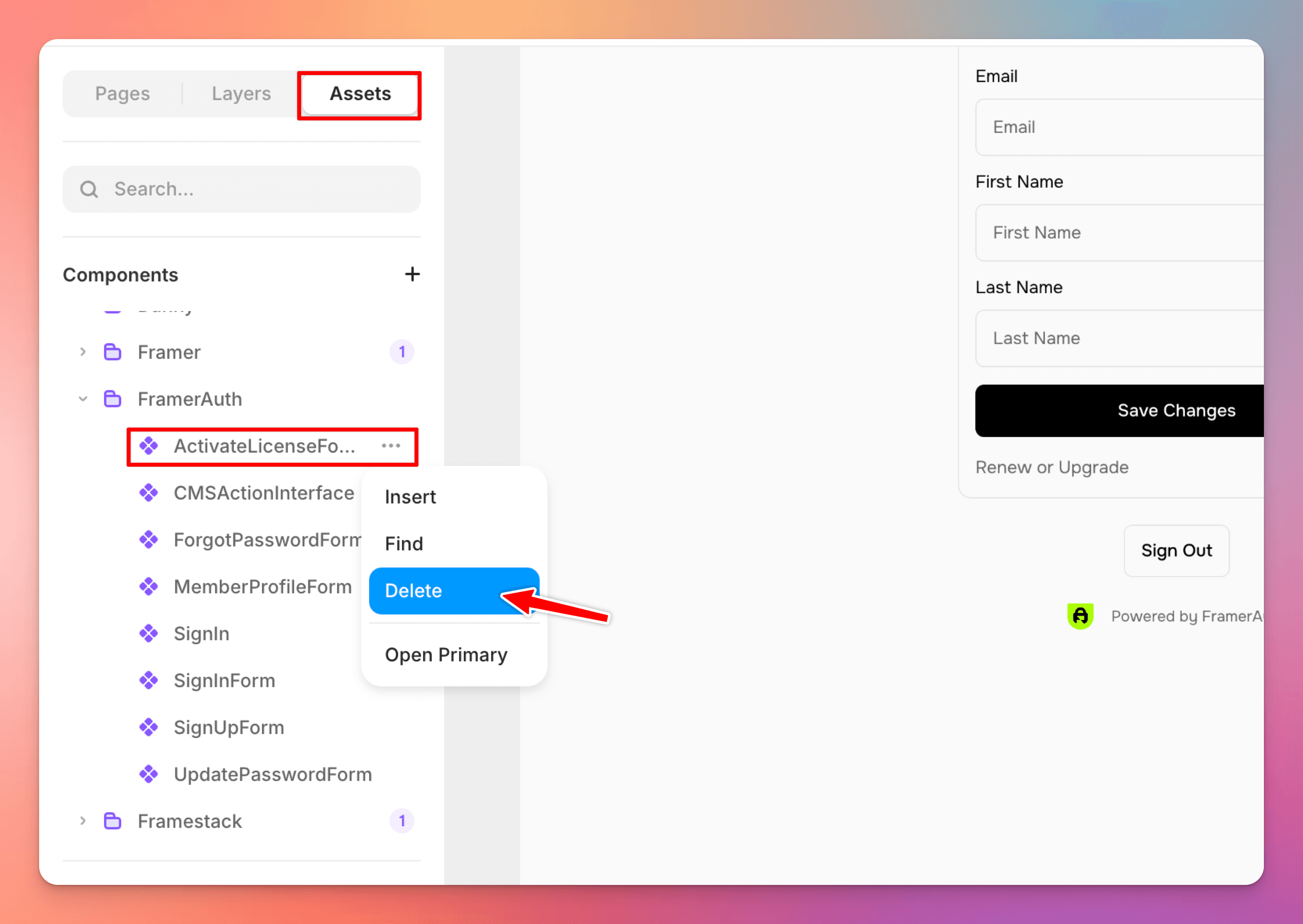
After replacing with V2 components, delete all legacy components with "Form" appended.
Legacy forms:
SignInFormSignUpFormMemberProfileFormUpdatePasswordFormForgotPasswordForm
Delete deprecated components from your project:
AuthWidgetActivateLicenseForm
9
Replace old Lemon Squeezy checkout links with ActionButton
If you did not use Lemon Squeezy in V1, skip this step.
Important step!
If your website uses Lemon Squeezy links in V1 to trigger a checkout, then this one is important. All checkouts in V2 must be triggered via the new ActionButton component provided in the plugin.
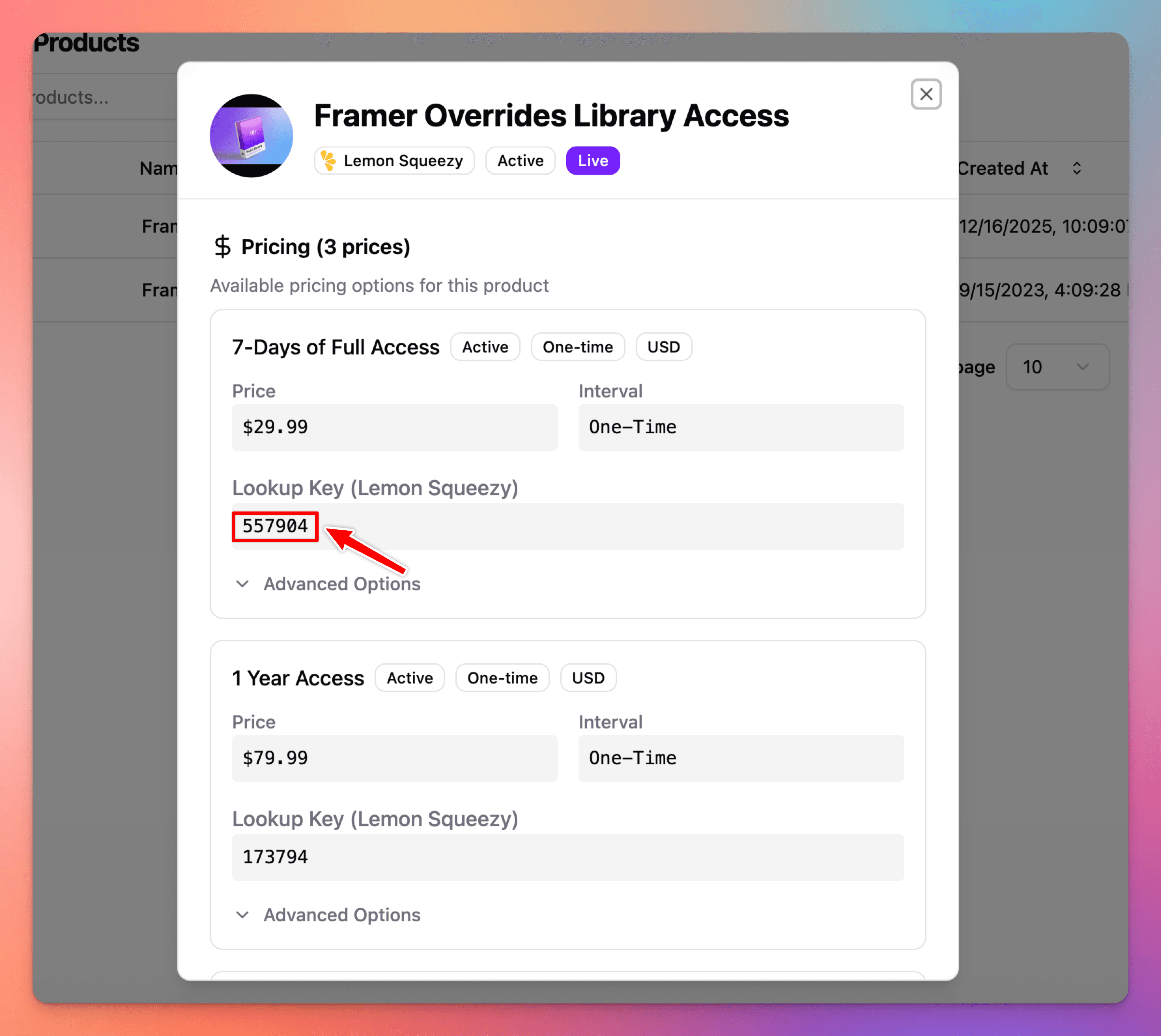
Go to the Store page in your V2 dashboard.
Select the product that was imported from Lemon Squeezy.
Copy the product’s lookup key.
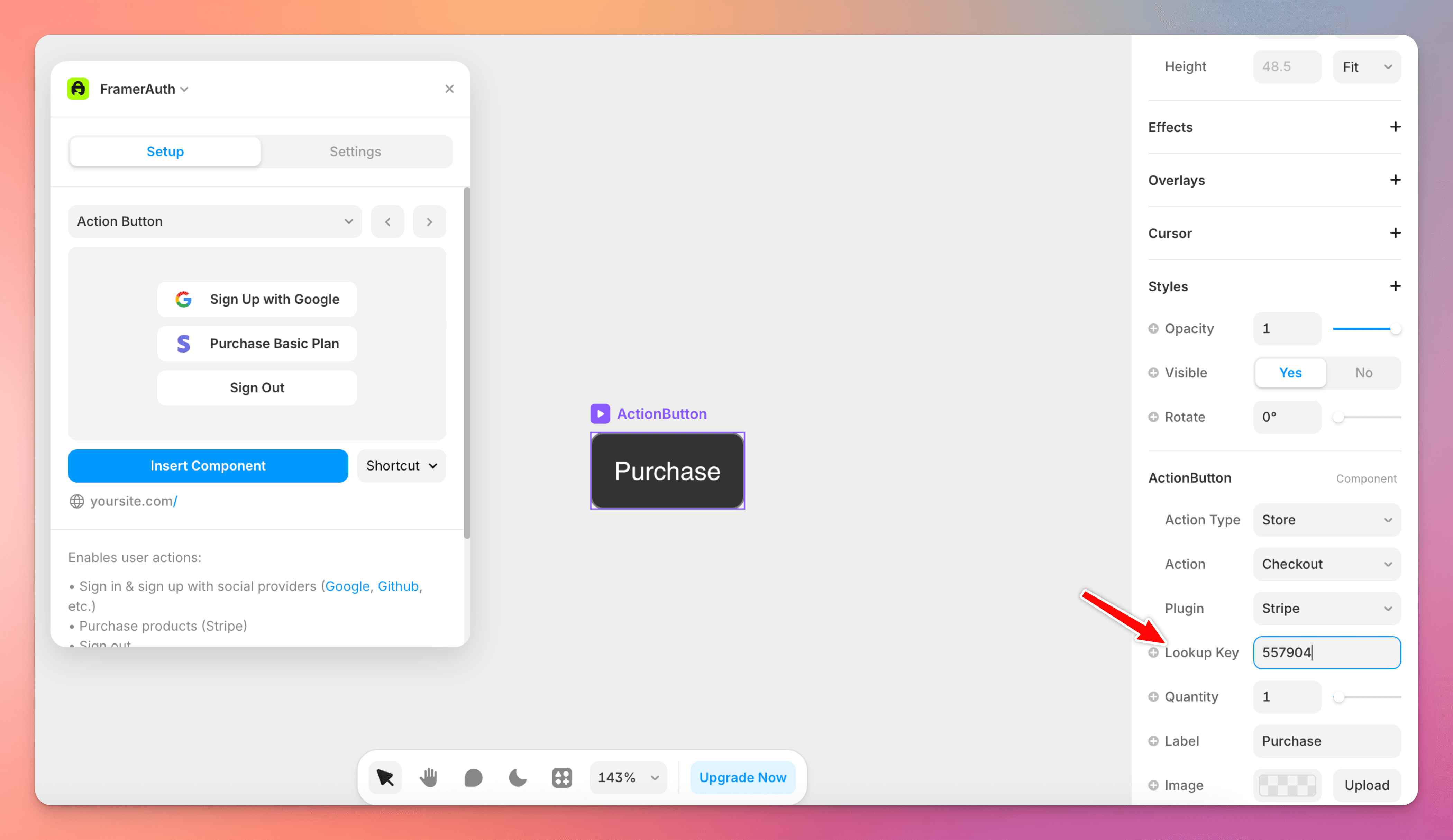
Add the
ActionButtoncomponent to your Framer project.Paste the lookup key into the lookup key field.
Use the
ActionButtonas your new checkout button.
When clicked, the ActionButton will automatically trigger checkout for the selected product.
What has changed with Lemon Squeezy in V2?
In V1, we used Lemon Squeezy license keys to validate access. In V2, license keys are no longer used.
Instead, FrameAuth uses the email address from checkout.
If the user does not already exist, we create an account for them, send them an email notifying them, and grant the correct tags (access). If the user already exists, FrameAuth grants the correct tags to their existing account.
This makes it easier for customers to purchase access and sign in without needing to copy, paste, activate, or manage a license key.
In V2, you can connect more products, variants, and have more flexibility with how access is granted.
10
Review imported tags (access controls)
If you did not use Lemon Squeezy in V1, skip this step.
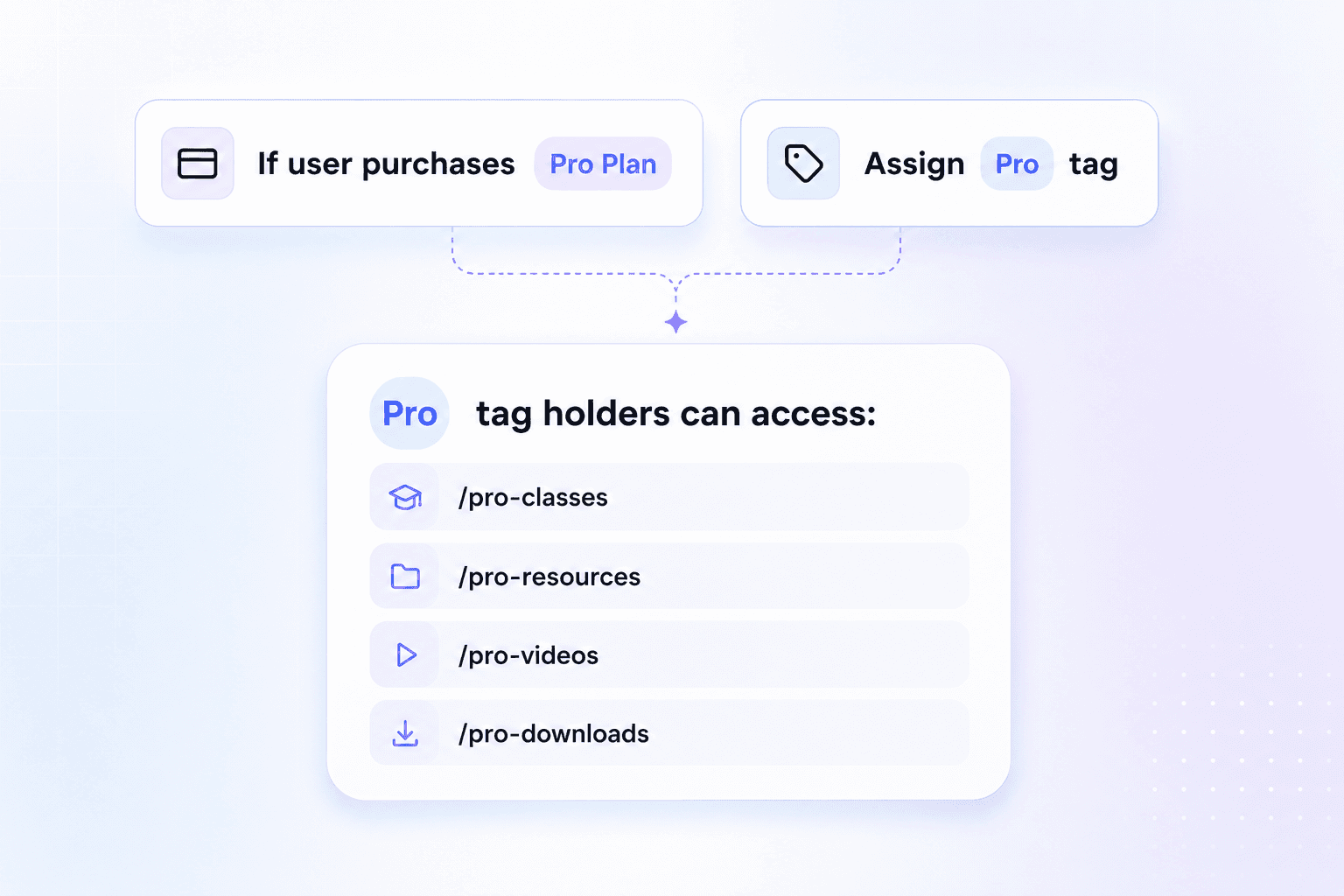
After migrating we will automatically create tags for your product variants. In V2, tags are how access controls are handled.
Tags are how access control works in V2.
Users can receive tags in two ways:
Automatically after a successful purchase
Manually assigned from the user page in your dashboard
After migration, existing purchasers will already have the tags connected to their previous purchases.
A tag will be created for each product variant that was imported.
Review the tags that were created and adjust them as needed. You can keep the imported tag structure, rename tags, consolidate tags, or create a simpler access structure if that better fits your site.
For example, you may want to use one Premium tag instead of multiple product-specific tags if all premium customers should receive the same access.
11
Re-lock pages
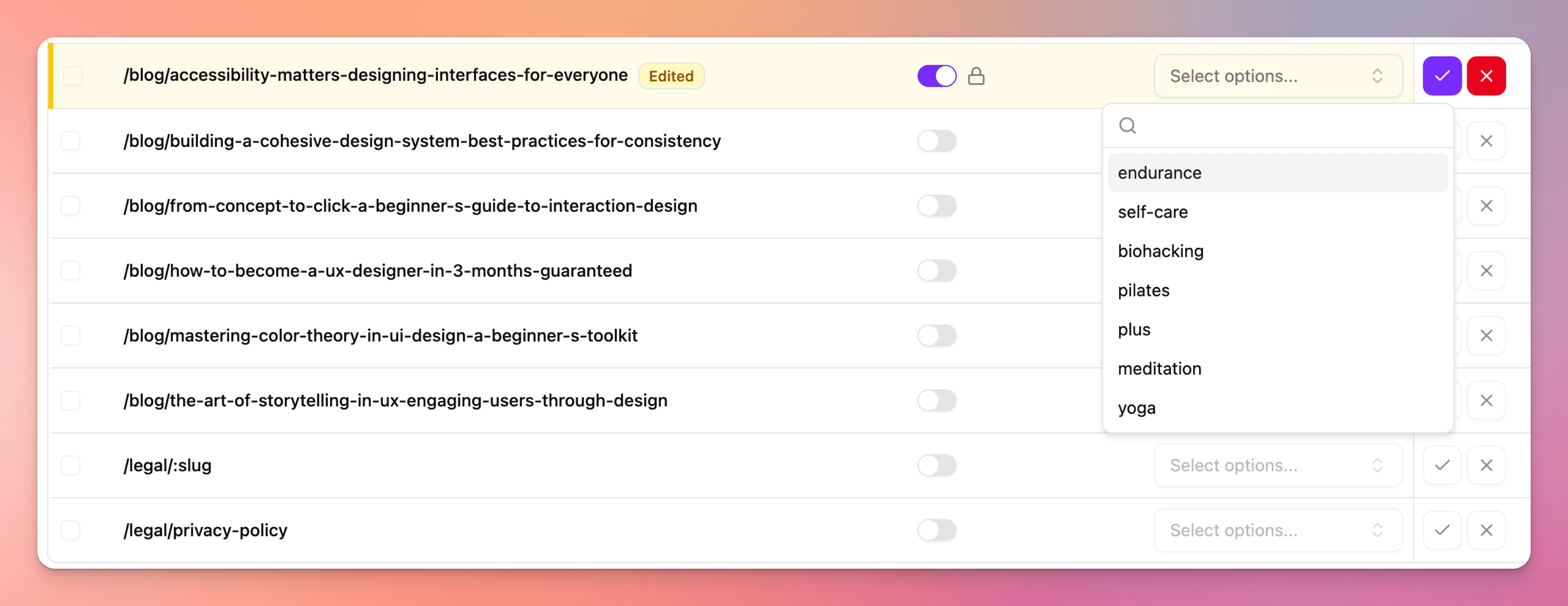
Locked pages are not migrated automatically.
After reviewing your tags, manually re-lock any pages that should be protected.
For each protected page, choose the tag required for access.
For example:
Lock the account page with no tag to make it accessible to users who are signed in.
Lock your course dashboard to users with the
Course AccesstagLock your premium resource library to users with the
Premiumtag
12
Go live and connect custom domain
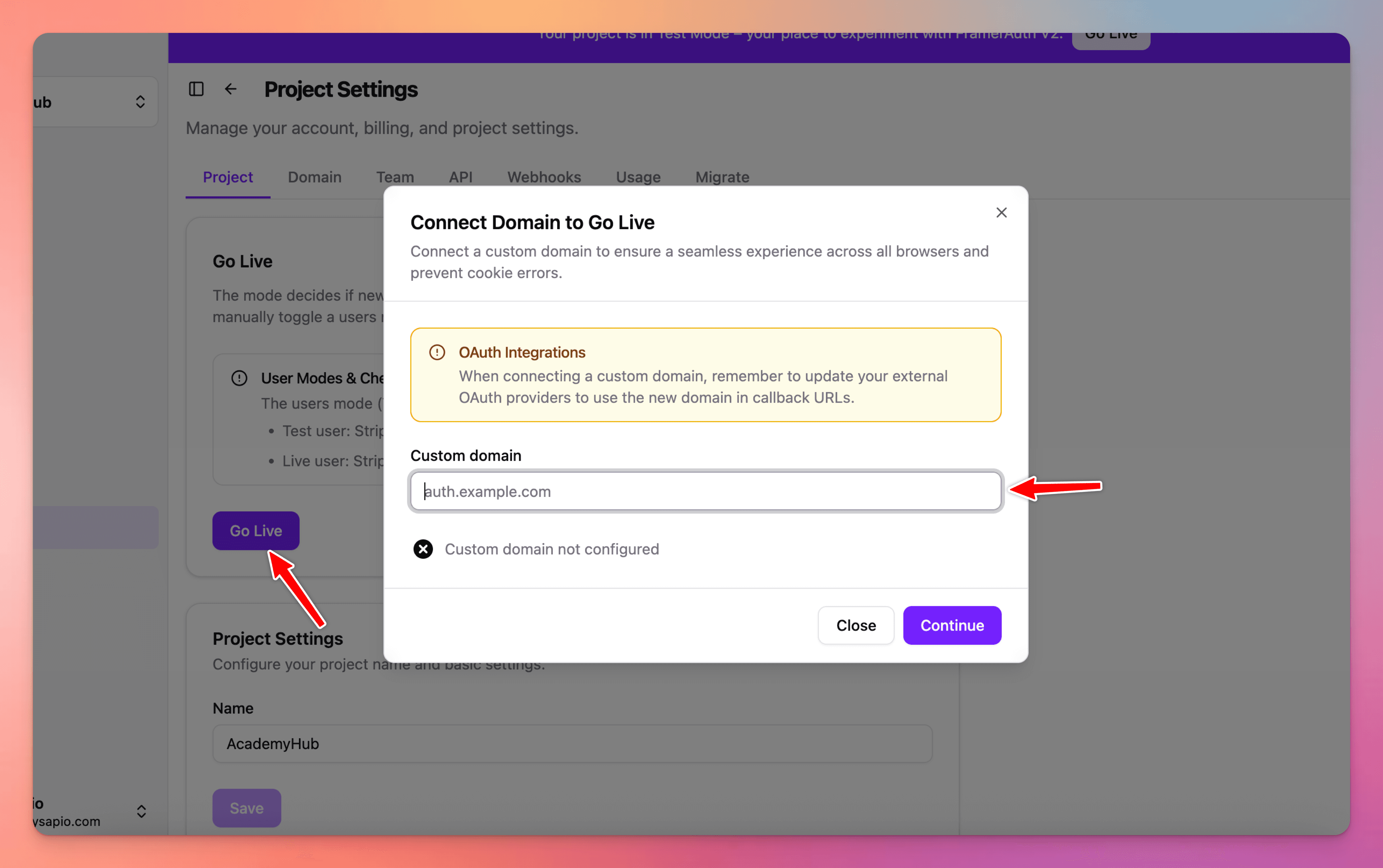
In V2, connecting a custom domain is required to prevent cookie errors. Your domain will need to be connected in order for your project to go live.
Connect your domain then you're all set to publish your website and start receiving sign ups in V2.
Migration checklist
Before going live, confirm the following:
1
Your Framer project is connected to the correct V2 project
2
Your legacy V1 snippet has been removed from Framer
3
Your FramerAuth.tsx file has been updated
4
Missing overrides have been replaced
5
V1 components have been replaced with V2 components
6
Deprecated components have been deleted
7
Old Lemon Squeezy checkout links have been replaced with ActionButton
8
Imported tags have been reviewed
9
Protected pages have been locked again
10
Your custom domain is connected
11
Sign up, sign in, checkout, and locked content have been tested
12
Your site has been tested on staging before publishing live
V2 is a ground-up rebuild designed to help you build more powerful membership websites in Framer without code.
Migrating to V2 unlocks a more flexible access system, improved payment flows, stronger project management, updated components, and a better experience for your members.
Before you can start using V2 on your live site, you will need to migrate your existing V1 project. Some parts of the migration happen automatically, while others require manual updates inside Framer. This guide will walk you through the full process.
We'll migrate your site for free
If you’d rather not handle the setup yourself, reach out and we’ll migrate your project for you.
Migrating to V2 is optional. Legacy will remain fully functional.
New features in V2
Payments:
Stripe, Lemon Squeezy, multi-product (Stripe, Lemon Squeezy)
Project management:
Team access, multi-project, analytics
Auth:
OTP, OAuth (Google, GitHub), email verification, validation (new user approve/reject)
Features:
Webhooks, API
User:
Tags, custom fields, profile photo
Data that will be migrated
Users
Purchases + access
Bookmarks
Considerations before migrating
Migrating from legacy (V1/beta) to V2 comes with a few important considerations to keep in mind to ensure a smoothly transition.
Please review carefully the following:
Test data does not get migrated. No sandbox products, purchases, or users get migrated.
Locked pages are not automatically migrated and will need to be re-locked in V2.
Lemon Squeezy license keys are no longer used/needed in V2.
You must use the new ActionButton component to trigger checkouts. Lemon Squeezy links will not work.
Passwords do not migrate. In V2, users can use passwordless options like OTP, OAuth, or set a new password via the forgot password form.
How to migrate to V2
Now that you've learned about the limitations and considerations, let's migrate:
1
Create a V2 account
If you haven't already, please sign up for a V2 account. Your existing email will only allow you to sign in to V1.
After signing up you will have two accounts, one for V1 and one for V2.
2
Connect Lemon Squeezy
If you did not use Lemon Squeezy in V1, skip this step.
Go to the plugins page and connect your live mode Lemon Squeezy store.
When creating your API key, set the expiration date at least 5 years in the future so you do not need to replace it soon.
Note: Testing data and sandbox purchases will not be migrated. Only live Lemon Squeezy data is imported.
3
Start the migration
Go to the migration page.
Click 'connect site' then sign in with your V1 email address to connect your legacy site, then start the migration.
Monitor the migration progress (you can close the page/website). Depending on the size of your V1 dataset, the migration can take anywhere from 1 minute to 3 hours.
4
Remove the existing snippet
Go to your Framer project settings and open the Custom Code section.
Remove any snippets that were added manually or by the legacy plugin.
The snippet is usually located at the start of the <body> section.
5
Connect your V2 project to your Framer site
Open the plugin, sign in to your V2 account, select your project, and click connect.
Note: if a warning message appears, it will display the same warnings that were mentioned above.
Connecting your project to V2 will not interfere with your existing V1 site or setup. You can undo the migration at any point if you choose to go back to the legacy version for any reason.
If you have any questions or concerns, chat with us.
6
Replace old overrides with V2 ones
Use the agent to replace old overrides with new ones. We recommend using ChatGPT 5.6 Sol (Medium) for this task. The agent will find all instances of old overrides and replace them with the new overrides from the FramerAuthV2.tsx file that was imported from the plugin.
Replace overrides
Copy
# ROLE
You are a senior Framer web designer performing a version migration on an existing
site. You work only within the scope defined below — you do not redesign, restyle,
or "improve" anything beyond what is explicitly listed.

# CONTEXT
This site currently runs FrameAuth V1, a no-code authentication plugin for Framer.
I am migrating it to V2. V1 shipped as a body script tag plus a set of named
overrides. V2 replaces the script and renames most overrides (source names now
live in `FramerAuthV2.tsx`). Your job is to find every V1 reference in this project
and migrate it to its V2 equivalent, without altering anything else. Component
migration is out of scope for this pass and will be handled separately.

# GLOBAL RULES
- Treat every mapping below as exact and literal. Do not infer, guess, or apply a
  "close enough" override if it isn't in the mapping list.
- Do not restyle, resize, or reposition anything as part of this migration. Only
  swap the script and overrides per the instructions.
- If you find a reference that matches one of the "custom" patterns described below,
  do not attempt to migrate it — stop and report it instead.
- Work through the site systematically (page by page, then global elements) so
  nothing is missed, and keep a running list of every change you make for the final
  report.

# TASKS

## 1. Replace the V1 script tag
- Search the start of the `<body>` tag for a script formatted **exactly** like this:
  `<script src="https://cdn.framerauth.com/packages/sdk/live/latest/framerauth.js" site-id="9NDRZYGP"></script>`
- The `site-id` value is unique per site — match on the URL and attribute structure,
  not on this specific ID.
- Only remove it if the formatting matches exactly. Do not touch any other script tags.
- In its place, insert the V2 script:
```html
  <script src="https://cdn.jsdelivr.net/npm/@framerauth/sdk@2/dist/framerauth.js" id="framerauth-v2-plugin-script"></script>
```
- Once the migration is complete, if no instances remain, remove the FramerAuth.tsx override file (or whichever file name had the old overrides)

## 2. Migrate overrides
Find every canvas element referencing a V1 override below. Detach the V1 override
and attach its V2 replacement from `FramerAuthV2.tsx`, using this exact mapping:

| V1 override | V2 override |
|---|---|
| `withLoggedOut` | `ShowIfSignedOut` |
| `withLoggedIn` | `ShowIfSignedIn` |
| `withVariant` | `ToggleVariant` |
| `withVariantActiveLicense` | `ToggleVariantIfWithTag` |
| `withSignOut` | `SignOut` |
| `withActiveLicense` | `ShowIfWithTag` |
| `withNoActiveLicense` | `ShowIfWithoutTag` |
| `FullName` or `FirstName` | `Name` |
| `withIsLessonComplete` | `isComplete` |
| `withActionCompleteLesson` | `CompleteLesson` |
| `withComponentBookmarkBlog` | `BookmarkList` |
| `withIsBookmarkedBlog` | `ShowIfBookmarked` |
| `withToggleBookmarkBlog` | `ToggleBookmark` |

Special cases:
- `withAuth` is deprecated — remove it entirely, do not replace it.
- `withDynamicGridHeight` is deprecated — remove it entirely, do not replace it.
- If you find any `withPlan` override in use, do not migrate it — report it back to
  me by name and tell me it was not automatically migrated, and that I should
  contact https://frameauth.com/support for help migrating custom overrides.
- If you find a custom override such as `withIsBookmarked(customString)` or
  `withPlan(customString)` — for example `withIsBookmarkedProducts` — do not attempt
  to migrate it. Report it back to me by name and tell me it was not automatically
  migrated, and that I should contact https://frameauth.com/support for help
  migrating custom overrides.

# OUTPUT
After completing the migration, report back with:
1. Confirmation the V1 script was found and replaced (or a note that no matching
   script was found).
2. A full list of overrides migrated, with the page/layer they were found on.
3. Any `withPlan` overrides found, flagged for my attention.
4. Any custom overrides found (e.g. `withIsBookmarkedProducts`) that were **not**
   migrated, with a note to contact https://frameauth.com/support.
If your project used a custom withPlan or bookmarking overrides in V1, contact support for help migrating custom overrides.
7
Replace legacy components with V2 components
In your Framer project, find the components used in V1 like SignUpForm, SignInForm, etc.
Add the V2 components to the canvas then right click on a V1 component and select 'replace all instances' then select the V2 equivalent.
Legacy forms include "Form" appended at the end while V2 forms do not, so it's easy to distinguish legacy versus V2. For example, the sign in form in legacy is called SignInForm while in V2 it's just called SignIn.
You may also need to rename pages. Double check to make sure your paths pages match. For example, /update-password is called /reset-password in V2.
The V2 pages are:
/sign-in
/sign-up
/forgot-password
/reset-password
/otp
/account
If you used custom page paths in V1, please contact support.
We recommend adding an OTP flow
Existing user's passwords will not be migrated to V2. This means the user can set a new password through the forgot password flow, or what we recommend, is making sign in via OTP your primary sign in.
This will allow your existing users to enter their email address to receive a one-time-password for a seamless login experience.
8
Remove legacy and deprecated components
After replacing with V2 components, delete all legacy components with "Form" appended.
Legacy forms:
SignInFormSignUpFormMemberProfileFormUpdatePasswordFormForgotPasswordForm
Delete deprecated components from your project:
AuthWidgetActivateLicenseForm
9
Replace old Lemon Squeezy checkout links with ActionButton
If you did not use Lemon Squeezy in V1, skip this step.
Important step!
If your website uses Lemon Squeezy links in V1 to trigger a checkout, then this one is important. All checkouts in V2 must be triggered via the new ActionButton component provided in the plugin.
Go to the Store page in your V2 dashboard.
Select the product that was imported from Lemon Squeezy.
Copy the product’s lookup key.
Add the
ActionButtoncomponent to your Framer project.Paste the lookup key into the lookup key field.
Use the
ActionButtonas your new checkout button.
When clicked, the ActionButton will automatically trigger checkout for the selected product.
What has changed with Lemon Squeezy in V2?
In V1, we used Lemon Squeezy license keys to validate access. In V2, license keys are no longer used.
Instead, FrameAuth uses the email address from checkout.
If the user does not already exist, we create an account for them, send them an email notifying them, and grant the correct tags (access). If the user already exists, FrameAuth grants the correct tags to their existing account.
This makes it easier for customers to purchase access and sign in without needing to copy, paste, activate, or manage a license key.
In V2, you can connect more products, variants, and have more flexibility with how access is granted.
10
Review imported tags (access controls)
If you did not use Lemon Squeezy in V1, skip this step.
After migrating we will automatically create tags for your product variants. In V2, tags are how access controls are handled.
Tags are how access control works in V2.
Users can receive tags in two ways:
Automatically after a successful purchase
Manually assigned from the user page in your dashboard
After migration, existing purchasers will already have the tags connected to their previous purchases.
A tag will be created for each product variant that was imported.
Review the tags that were created and adjust them as needed. You can keep the imported tag structure, rename tags, consolidate tags, or create a simpler access structure if that better fits your site.
For example, you may want to use one Premium tag instead of multiple product-specific tags if all premium customers should receive the same access.
11
Re-lock pages
Locked pages are not migrated automatically.
After reviewing your tags, manually re-lock any pages that should be protected.
For each protected page, choose the tag required for access.
For example:
Lock the account page with no tag to make it accessible to users who are signed in.
Lock your course dashboard to users with the
Course AccesstagLock your premium resource library to users with the
Premiumtag
12
Go live and connect custom domain
In V2, connecting a custom domain is required to prevent cookie errors. Your domain will need to be connected in order for your project to go live.
Connect your domain then you're all set to publish your website and start receiving sign ups in V2.
Migration checklist
Before going live, confirm the following:
1
Your Framer project is connected to the correct V2 project
2
Your legacy V1 snippet has been removed from Framer
3
Your FramerAuth.tsx file has been updated
4
Missing overrides have been replaced
5
V1 components have been replaced with V2 components
6
Deprecated components have been deleted
7
Old Lemon Squeezy checkout links have been replaced with ActionButton
8
Imported tags have been reviewed
9
Protected pages have been locked again
10
Your custom domain is connected
11
Sign up, sign in, checkout, and locked content have been tested
12
Your site has been tested on staging before publishing live
V2 is a ground-up rebuild designed to help you build more powerful membership websites in Framer without code.
Migrating to V2 unlocks a more flexible access system, improved payment flows, stronger project management, updated components, and a better experience for your members.
Before you can start using V2 on your live site, you will need to migrate your existing V1 project. Some parts of the migration happen automatically, while others require manual updates inside Framer. This guide will walk you through the full process.
We'll migrate your site for free
If you’d rather not handle the setup yourself, reach out and we’ll migrate your project for you.
Migrating to V2 is optional. Legacy will remain fully functional.
New features in V2
Payments:
Stripe, Lemon Squeezy, multi-product (Stripe, Lemon Squeezy)
Project management:
Team access, multi-project, analytics
Auth:
OTP, OAuth (Google, GitHub), email verification, validation (new user approve/reject)
Features:
Webhooks, API
User:
Tags, custom fields, profile photo
Data that will be migrated
Users
Purchases + access
Bookmarks
Considerations before migrating
Migrating from legacy (V1/beta) to V2 comes with a few important considerations to keep in mind to ensure a smoothly transition.
Please review carefully the following:
Test data does not get migrated. No sandbox products, purchases, or users get migrated.
Locked pages are not automatically migrated and will need to be re-locked in V2.
Lemon Squeezy license keys are no longer used/needed in V2.
You must use the new ActionButton component to trigger checkouts. Lemon Squeezy links will not work.
Passwords do not migrate. In V2, users can use passwordless options like OTP, OAuth, or set a new password via the forgot password form.
How to migrate to V2
Now that you've learned about the limitations and considerations, let's migrate:
1
Create a V2 account
If you haven't already, please sign up for a V2 account. Your existing email will only allow you to sign in to V1.
After signing up you will have two accounts, one for V1 and one for V2.
2
Connect Lemon Squeezy
If you did not use Lemon Squeezy in V1, skip this step.
Go to the plugins page and connect your live mode Lemon Squeezy store.
When creating your API key, set the expiration date at least 5 years in the future so you do not need to replace it soon.
Note: Testing data and sandbox purchases will not be migrated. Only live Lemon Squeezy data is imported.
3
Start the migration
Go to the migration page.
Click 'connect site' then sign in with your V1 email address to connect your legacy site, then start the migration.
Monitor the migration progress (you can close the page/website). Depending on the size of your V1 dataset, the migration can take anywhere from 1 minute to 3 hours.
4
Remove the existing snippet
Go to your Framer project settings and open the Custom Code section.
Remove any snippets that were added manually or by the legacy plugin.
The snippet is usually located at the start of the <body> section.
5
Connect your V2 project to your Framer site
Open the plugin, sign in to your V2 account, select your project, and click connect.
Note: if a warning message appears, it will display the same warnings that were mentioned above.
Connecting your project to V2 will not interfere with your existing V1 site or setup. You can undo the migration at any point if you choose to go back to the legacy version for any reason.
If you have any questions or concerns, chat with us.
6
Replace old overrides with V2 ones
Use the agent to replace old overrides with new ones. We recommend using ChatGPT 5.6 Sol (Medium) for this task. The agent will find all instances of old overrides and replace them with the new overrides from the FramerAuthV2.tsx file that was imported from the plugin.
Replace overrides
Copy
# ROLE
You are a senior Framer web designer performing a version migration on an existing
site. You work only within the scope defined below — you do not redesign, restyle,
or "improve" anything beyond what is explicitly listed.

# CONTEXT
This site currently runs FrameAuth V1, a no-code authentication plugin for Framer.
I am migrating it to V2. V1 shipped as a body script tag plus a set of named
overrides. V2 replaces the script and renames most overrides (source names now
live in `FramerAuthV2.tsx`). Your job is to find every V1 reference in this project
and migrate it to its V2 equivalent, without altering anything else. Component
migration is out of scope for this pass and will be handled separately.

# GLOBAL RULES
- Treat every mapping below as exact and literal. Do not infer, guess, or apply a
  "close enough" override if it isn't in the mapping list.
- Do not restyle, resize, or reposition anything as part of this migration. Only
  swap the script and overrides per the instructions.
- If you find a reference that matches one of the "custom" patterns described below,
  do not attempt to migrate it — stop and report it instead.
- Work through the site systematically (page by page, then global elements) so
  nothing is missed, and keep a running list of every change you make for the final
  report.

# TASKS

## 1. Replace the V1 script tag
- Search the start of the `<body>` tag for a script formatted **exactly** like this:
  `<script src="https://cdn.framerauth.com/packages/sdk/live/latest/framerauth.js" site-id="9NDRZYGP"></script>`
- The `site-id` value is unique per site — match on the URL and attribute structure,
  not on this specific ID.
- Only remove it if the formatting matches exactly. Do not touch any other script tags.
- In its place, insert the V2 script:
```html
  <script src="https://cdn.jsdelivr.net/npm/@framerauth/sdk@2/dist/framerauth.js" id="framerauth-v2-plugin-script"></script>
```
- Once the migration is complete, if no instances remain, remove the FramerAuth.tsx override file (or whichever file name had the old overrides)

## 2. Migrate overrides
Find every canvas element referencing a V1 override below. Detach the V1 override
and attach its V2 replacement from `FramerAuthV2.tsx`, using this exact mapping:

| V1 override | V2 override |
|---|---|
| `withLoggedOut` | `ShowIfSignedOut` |
| `withLoggedIn` | `ShowIfSignedIn` |
| `withVariant` | `ToggleVariant` |
| `withVariantActiveLicense` | `ToggleVariantIfWithTag` |
| `withSignOut` | `SignOut` |
| `withActiveLicense` | `ShowIfWithTag` |
| `withNoActiveLicense` | `ShowIfWithoutTag` |
| `FullName` or `FirstName` | `Name` |
| `withIsLessonComplete` | `isComplete` |
| `withActionCompleteLesson` | `CompleteLesson` |
| `withComponentBookmarkBlog` | `BookmarkList` |
| `withIsBookmarkedBlog` | `ShowIfBookmarked` |
| `withToggleBookmarkBlog` | `ToggleBookmark` |

Special cases:
- `withAuth` is deprecated — remove it entirely, do not replace it.
- `withDynamicGridHeight` is deprecated — remove it entirely, do not replace it.
- If you find any `withPlan` override in use, do not migrate it — report it back to
  me by name and tell me it was not automatically migrated, and that I should
  contact https://frameauth.com/support for help migrating custom overrides.
- If you find a custom override such as `withIsBookmarked(customString)` or
  `withPlan(customString)` — for example `withIsBookmarkedProducts` — do not attempt
  to migrate it. Report it back to me by name and tell me it was not automatically
  migrated, and that I should contact https://frameauth.com/support for help
  migrating custom overrides.

# OUTPUT
After completing the migration, report back with:
1. Confirmation the V1 script was found and replaced (or a note that no matching
   script was found).
2. A full list of overrides migrated, with the page/layer they were found on.
3. Any `withPlan` overrides found, flagged for my attention.
4. Any custom overrides found (e.g. `withIsBookmarkedProducts`) that were **not**
   migrated, with a note to contact https://frameauth.com/support.
If your project used a custom withPlan or bookmarking overrides in V1, contact support for help migrating custom overrides.
7
Replace legacy components with V2 components
In your Framer project, find the components used in V1 like SignUpForm, SignInForm, etc.
Add the V2 components to the canvas then right click on a V1 component and select 'replace all instances' then select the V2 equivalent.
Legacy forms include "Form" appended at the end while V2 forms do not, so it's easy to distinguish legacy versus V2. For example, the sign in form in legacy is called SignInForm while in V2 it's just called SignIn.
You may also need to rename pages. Double check to make sure your paths pages match. For example, /update-password is called /reset-password in V2.
The V2 pages are:
/sign-in
/sign-up
/forgot-password
/reset-password
/otp
/account
If you used custom page paths in V1, please contact support.
We recommend adding an OTP flow
Existing user's passwords will not be migrated to V2. This means the user can set a new password through the forgot password flow, or what we recommend, is making sign in via OTP your primary sign in.
This will allow your existing users to enter their email address to receive a one-time-password for a seamless login experience.
8
Remove legacy and deprecated components
After replacing with V2 components, delete all legacy components with "Form" appended.
Legacy forms:
SignInFormSignUpFormMemberProfileFormUpdatePasswordFormForgotPasswordForm
Delete deprecated components from your project:
AuthWidgetActivateLicenseForm
9
Replace old Lemon Squeezy checkout links with ActionButton
If you did not use Lemon Squeezy in V1, skip this step.
Important step!
If your website uses Lemon Squeezy links in V1 to trigger a checkout, then this one is important. All checkouts in V2 must be triggered via the new ActionButton component provided in the plugin.
Go to the Store page in your V2 dashboard.
Select the product that was imported from Lemon Squeezy.
Copy the product’s lookup key.
Add the
ActionButtoncomponent to your Framer project.Paste the lookup key into the lookup key field.
Use the
ActionButtonas your new checkout button.
When clicked, the ActionButton will automatically trigger checkout for the selected product.
What has changed with Lemon Squeezy in V2?
In V1, we used Lemon Squeezy license keys to validate access. In V2, license keys are no longer used.
Instead, FrameAuth uses the email address from checkout.
If the user does not already exist, we create an account for them, send them an email notifying them, and grant the correct tags (access). If the user already exists, FrameAuth grants the correct tags to their existing account.
This makes it easier for customers to purchase access and sign in without needing to copy, paste, activate, or manage a license key.
In V2, you can connect more products, variants, and have more flexibility with how access is granted.
10
Review imported tags (access controls)
If you did not use Lemon Squeezy in V1, skip this step.
After migrating we will automatically create tags for your product variants. In V2, tags are how access controls are handled.
Tags are how access control works in V2.
Users can receive tags in two ways:
Automatically after a successful purchase
Manually assigned from the user page in your dashboard
After migration, existing purchasers will already have the tags connected to their previous purchases.
A tag will be created for each product variant that was imported.
Review the tags that were created and adjust them as needed. You can keep the imported tag structure, rename tags, consolidate tags, or create a simpler access structure if that better fits your site.
For example, you may want to use one Premium tag instead of multiple product-specific tags if all premium customers should receive the same access.
11
Re-lock pages
Locked pages are not migrated automatically.
After reviewing your tags, manually re-lock any pages that should be protected.
For each protected page, choose the tag required for access.
For example:
Lock the account page with no tag to make it accessible to users who are signed in.
Lock your course dashboard to users with the
Course AccesstagLock your premium resource library to users with the
Premiumtag
12
Go live and connect custom domain
In V2, connecting a custom domain is required to prevent cookie errors. Your domain will need to be connected in order for your project to go live.
Connect your domain then you're all set to publish your website and start receiving sign ups in V2.
Migration checklist
Before going live, confirm the following:
1
Your Framer project is connected to the correct V2 project
2
Your legacy V1 snippet has been removed from Framer
3
Your FramerAuth.tsx file has been updated
4
Missing overrides have been replaced
5
V1 components have been replaced with V2 components
6
Deprecated components have been deleted
7
Old Lemon Squeezy checkout links have been replaced with ActionButton
8
Imported tags have been reviewed
9
Protected pages have been locked again
10
Your custom domain is connected
11
Sign up, sign in, checkout, and locked content have been tested
12
Your site has been tested on staging before publishing live
FAQ
Will my user's passwords be migrated?
They will not. The user will still be able to sign in via OTP (recommended) as well as OAuth. If you'd like you can direct customers to the forgot password flow to reset their password.
If I plan to use Stripe do I still need to connect Lemon Squeezy?
In order to migrate your existing customer purchases and grant them access (via tags) you will need to connect Lemon Squeezy. For future purchases you can use Stripe.
Do I need to migrate to V2?
At this time you are not required to migrate. You can remain with everything as is and your site will not be impacted. V2 unlocks new features that will not be available if you remain on V1.
Updated:
Need help? Talk with a human.